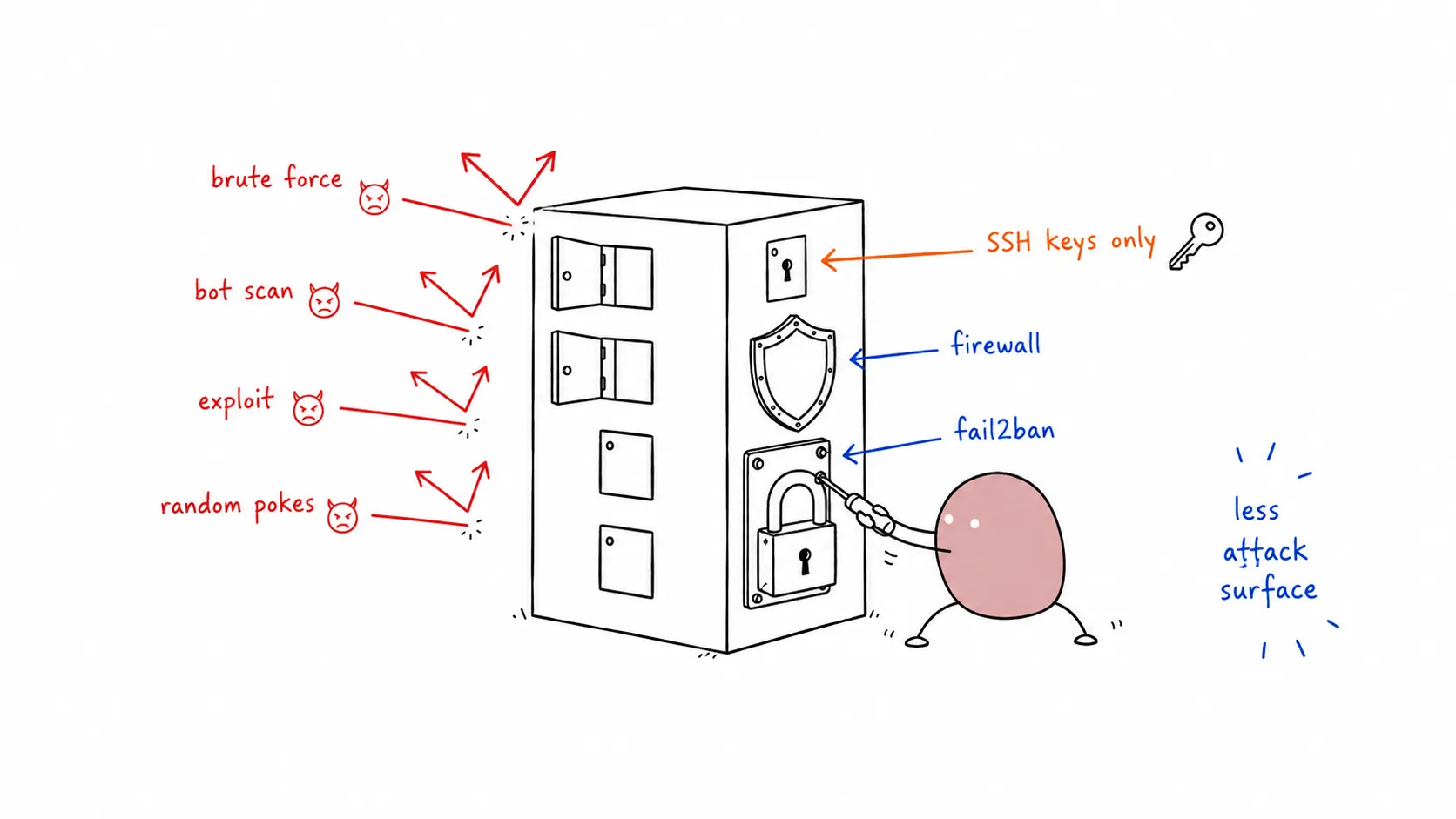
Securing your Ubuntu server is essential whether you’re running a production web server, a homelab service, or a cloud instance. This guide covers the essential steps to harden your Ubuntu Server 22.04/24.04 LTS installation, following security best practices and CIS benchmarks.
Ubuntu Server 22.04 LTS or 24.04 LTS (fresh installation preferred)
Root or sudo access
SSH access to the server
Backup of critical data (always backup before making system changes)
Start with a fully updated system to patch known vulnerabilities:
sudo apt update && sudo apt upgrade -y
Enable unattended-upgrades for automatic security patches:
sudo apt install -y unattended-upgrades
sudo dpkg-reconfigure -plow unattended-upgrades
Verify the configuration:
cat /etc/apt/apt.conf.d/50unattended-upgrades | grep -A5 " Unattended-Upgrade::Allowed-Origins "
Changing from port 22 reduces automated attack attempts:
sudo nano /etc/ssh/sshd_config
Find and modify:
Prevent direct root access via SSH:
sudo nano /etc/ssh/sshd_config
Set:
⚠️ WARNING: Ensure you have SSH key access configured before disabling passwords!
sudo nano /etc/ssh/sshd_config
Set:
PasswordAuthentication no
Allow only specific users or groups:
sudo nano /etc/ssh/sshd_config
Add:
Restart SSH service:
sudo systemctl restart sshd
⚠️ IMPORTANT: Keep your current SSH session open and test a new connection before closing!
sudo ufw default deny incoming
sudo ufw default allow outgoing
Allow your custom SSH port (if changed):
sudo ufw allow 2222/tcp comment ' SSH custom port '
Or if using default SSH:
sudo ufw allow 22/tcp comment ' SSH '
Allow common services (adjust as needed):
# HTTP/HTTPS (for web servers)
sudo ufw allow 80/tcp comment ' HTTP '
sudo ufw allow 443/tcp comment ' HTTPS '
sudo ufw allow 51820/udp comment ' WireGuard '
sudo ufw allow 53/tcp comment ' DNS '
sudo ufw allow 53/udp comment ' DNS '
Fail2ban protects against brute-force attacks by banning IPs with suspicious activity.
sudo apt install -y fail2ban
Create a local configuration file:
sudo nano /etc/fail2ban/jail.local
Add the following configuration:
# Ban IP for 1 hour after 3 failed attempts within 10 minutes
# Enable email notifications (optional)
# sender = fail2ban@your-server
# action = %(action_mwl)s
logpath = /var/log/auth.log
# Protect additional services
sudo systemctl enable --now fail2ban
sudo fail2ban-client status
sudo fail2ban-client status sshd
sudo adduser yourusername
sudo usermod -aG sudo yourusername
Install password quality checking:
sudo apt install -y libpam-pwquality
sudo nano /etc/security/pwquality.conf
Set strong password requirements:
awk -F: ' $3 >= 1000 && $1 != "nobody" {print $1} ' /etc/passwd
sudo systemctl list-units --type=service --state=running
# Disable unnecessary services (adjust based on your needs)
sudo systemctl disable --now cups # Printing (if not needed)
sudo systemctl disable --now avahi-daemon # mDNS (if not needed)
sudo chmod 600 /etc/ssh/ssh_host_ * _key
sudo chmod 644 /etc/ssh/ssh_host_ * _key.pub
sudo chmod 640 /etc/shadow
# Secure sudo configuration
sudo chmod 440 /etc/sudoers
Find files with special permissions:
sudo find / -perm -4000 -type f 2> /dev/null
sudo find / -perm -2000 -type f 2> /dev/null
sudo nano /etc/sysctl.conf
Add:
net.ipv6.conf.all.disable_ipv6 = 1
net.ipv6.conf.default.disable_ipv6 = 1
net.ipv6.conf.lo.disable_ipv6 = 1
Apply:
sudo nano /etc/sysctl.conf
Add security hardening:
net.ipv4.conf.all.rp_filter = 1
net.ipv4.conf.default.rp_filter = 1
# Ignore ICMP broadcast requests
net.ipv4.icmp_echo_ignore_broadcasts = 1
# Disable source packet routing
net.ipv4.conf.all.accept_source_route = 0
net.ipv4.conf.default.accept_source_route = 0
net.ipv4.conf.all.accept_redirects = 0
net.ipv4.conf.default.accept_redirects = 0
net.ipv4.conf.all.secure_redirects = 0
net.ipv4.conf.default.secure_redirects = 0
net.ipv4.conf.all.send_redirects = 0
net.ipv4.conf.default.send_redirects = 0
net.ipv4.conf.all.log_martians = 1
# Disable IPv6 router solicitations
net.ipv6.conf.all.accept_ra = 0
net.ipv6.conf.default.accept_ra = 0
Apply:
sudo cp /var/lib/aide/aide.db.new /var/lib/aide/aide.db
sudo apt install -y lynis
sudo apt install -y rkhunter chkrootbot
sudo apt install -y logwatch
Create a backup script:
sudo nano /usr/local/bin/system-backup.sh
DATE = $( date +%Y%m%d_%H%M%S )
BACKUP_DIR = " /backup/system "
# Backup critical configuration
tar czf $BACKUP_DIR /config_backup_ $DATE .tar.gz /etc /home /var/spool/cron /var/lib/dpkg
# Keep only last 7 backups
ls -t $BACKUP_DIR / * .tar.gz | tail -n +8 | xargs -r rm
echo " Backup completed: $DATE "
Make executable:
sudo chmod +x /usr/local/bin/system-backup.sh
Add daily backup at 2 AM:
0 2 * * * /usr/local/bin/system-backup.sh >> /var/log/system-backup.log 2>&1
sudo apt install -y auditd audispd-plugins
sudo systemctl enable --now auditd
grep " Failed password " /var/log/auth.log
grep " Accepted password " /var/log/auth.log
sudo tail -f /var/log/ufw.log
Shared memory is a common attack vector. While it’s efficient for process communication, it can be exploited for privilege escalation or arbitrary code execution.
Add the following to /etc/fstab to mount shared memory with restrictive options:
echo " tmpfs /run/shm tmpfs defaults,noexec,nosuid,nodev 0 0 " | sudo tee -a /etc/fstab
Explanation:
noexec — Prevents execution of binariesnosuid — Ignores set-user-identifier bitsnodev — Prevents interpretation of device files
Apply changes:
sudo mount -o remount /run/shm
Verify the mount:
# Should show: tmpfs on /run/shm type tmpfs (rw,nosuid,nodev,noexec,relatime)
Use this checklist to verify your hardening:
Quick commands to audit your server’s security:
# Find users with UID 0 (should only be root)
awk -F: ' ($3 == 0) {print} ' /etc/passwd
awk -F: ' {print $1} ' /etc/passwd
# Find users without passwords (empty password field)
awk -F: ' ($2 == "") {print $1} ' /etc/shadow
# Check for users with sudo access
# Find SUID/SGID files (potential privilege escalation)
find / -perm -4000 -type f 2> /dev/null
find / -perm -2000 -type f 2> /dev/null
# Check established connections
ss -tu np state established
# Check for open ports from outside
# (Run from another machine)
# Failed SSH login attempts
grep " Failed password " /var/log/auth.log | tail -20
grep " Accepted " /var/log/auth.log | tail -20
sudo fail2ban-client status sshd
sudo grep UFW /var/log/ufw.log | tail -20
# Check for world-writable directories
find / -type d -perm -002 ! -path " /proc/* " ! -path " /sys/* " 2> /dev/null
# List recently modified files (last 24 hours)
find /etc /var -mtime -1 -type f 2> /dev/null
# Check AIDE database (if installed)
sudo lynis audit system --quick
For quick deployment or automation, here’s a comprehensive hardening script. Review before running!
# Ubuntu Server Hardening Script
# WARNING: Review before running. Test in non-production first!
echo -e " ${ YELLOW }=== Ubuntu Server Hardening Script ===${ NC } "
echo -e " ${ RED }WARNING: Review this script before running!${ NC } "
echo -e " ${ GREEN }[1/8] Updating system packages...${ NC } "
apt update && apt upgrade -y
# 2. Install security tools
echo -e " ${ GREEN }[2/8] Installing security tools...${ NC } "
apt install -y ufw fail2ban unattended-upgrades libpam-pwquality
# 3. Configure automatic updates
echo -e " ${ GREEN }[3/8] Configuring automatic security updates...${ NC } "
dpkg-reconfigure -plow unattended-upgrades
echo -e " ${ GREEN }[4/8] Configuring UFW firewall...${ NC } "
ufw default deny incoming
ufw default allow outgoing
ufw allow 22/tcp comment ' SSH '
# 5. SSH Hardening (preserves current session)
echo -e " ${ GREEN }[5/8] Hardening SSH configuration...${ NC } "
cp /etc/ssh/sshd_config /etc/ssh/sshd_config.backup. $( date +%Y%m%d )
sed -i ' s/^#\?PermitRootLogin.*/PermitRootLogin no/ ' /etc/ssh/sshd_config
# Disable password authentication
sed -i ' s/^#\?PasswordAuthentication.*/PasswordAuthentication no/ ' /etc/ssh/sshd_config
sed -i ' s/^#\?PubkeyAuthentication.*/PubkeyAuthentication yes/ ' /etc/ssh/sshd_config
# Restart SSH (non-disruptive)
systemctl reload sshd || systemctl restart sshd
echo -e " ${ GREEN }[6/8] Configuring Fail2ban...${ NC } "
cat > /etc/fail2ban/jail.local << EOF
logpath = /var/log/auth.log
systemctl enable fail2ban
systemctl restart fail2ban
# 7. Secure Shared Memory
echo -e " ${ GREEN }[7/8] Securing shared memory...${ NC } "
if ! grep -q " /run/shm " /etc/fstab ; then
echo " tmpfs /run/shm tmpfs defaults,noexec,nosuid,nodev 0 0 " >> /etc/fstab
mount -o remount /run/shm
# 8. Kernel Security Parameters
echo -e " ${ GREEN }[8/8] Applying kernel security parameters...${ NC } "
cat >> /etc/sysctl.conf << EOF
net.ipv4.conf.all.rp_filter = 1
net.ipv4.conf.default.rp_filter = 1
net.ipv4.icmp_echo_ignore_broadcasts = 1
net.ipv4.conf.all.accept_source_route = 0
net.ipv4.conf.default.accept_source_route = 0
net.ipv4.conf.all.accept_redirects = 0
net.ipv4.conf.default.accept_redirects = 0
net.ipv4.conf.all.send_redirects = 0
net.ipv4.conf.default.send_redirects = 0
echo -e " ${ GREEN }=== Hardening Complete! ===${ NC } "
echo " Backup SSH config: /etc/ssh/sshd_config.backup.* "
echo -e " ${ YELLOW }IMPORTANT:${ NC } "
echo " 1. Keep your current SSH session open "
echo " 2. Test new SSH connection in another terminal "
echo " 3. If locked out, restore from backup: "
echo " cp /etc/ssh/sshd_config.backup.* /etc/ssh/sshd_config "
echo " systemctl restart sshd "
echo " Run 'lynis audit system' to verify hardening. "
Save and run:
wget https://your-domain.com/harden.sh -O ubuntu-harden.sh
nano ubuntu-harden.sh # Review before running!
# Make executable and run
chmod +x ubuntu-harden.sh
After hardening, test your configuration:
Verify SSH access: Try connecting with your key (not password)Test Fail2ban: Attempt failed logins and check ban statusCheck firewall: Use nmap from another machine to scan open portsRun Lynis audit: Review the hardening index score
# From another machine, scan your server
nmap -sV -O your-server-ip
This guide provides a solid security baseline for Ubuntu servers. Remember that security is an ongoing process:
Monitor logs regularly for suspicious activityKeep system updated with security patchesReview firewall rules periodicallyAudit user accounts and remove unused onesTest backups to ensure they work
⚠️ IMPORTANT: Always test changes in a non-production environment first. Keep a backup of working configurations before making changes.
Security is a journey, not a destination. Stay vigilant!