Skip to content
Client Panel

Blog

Production-Ready VPS: Multi-Node Edition

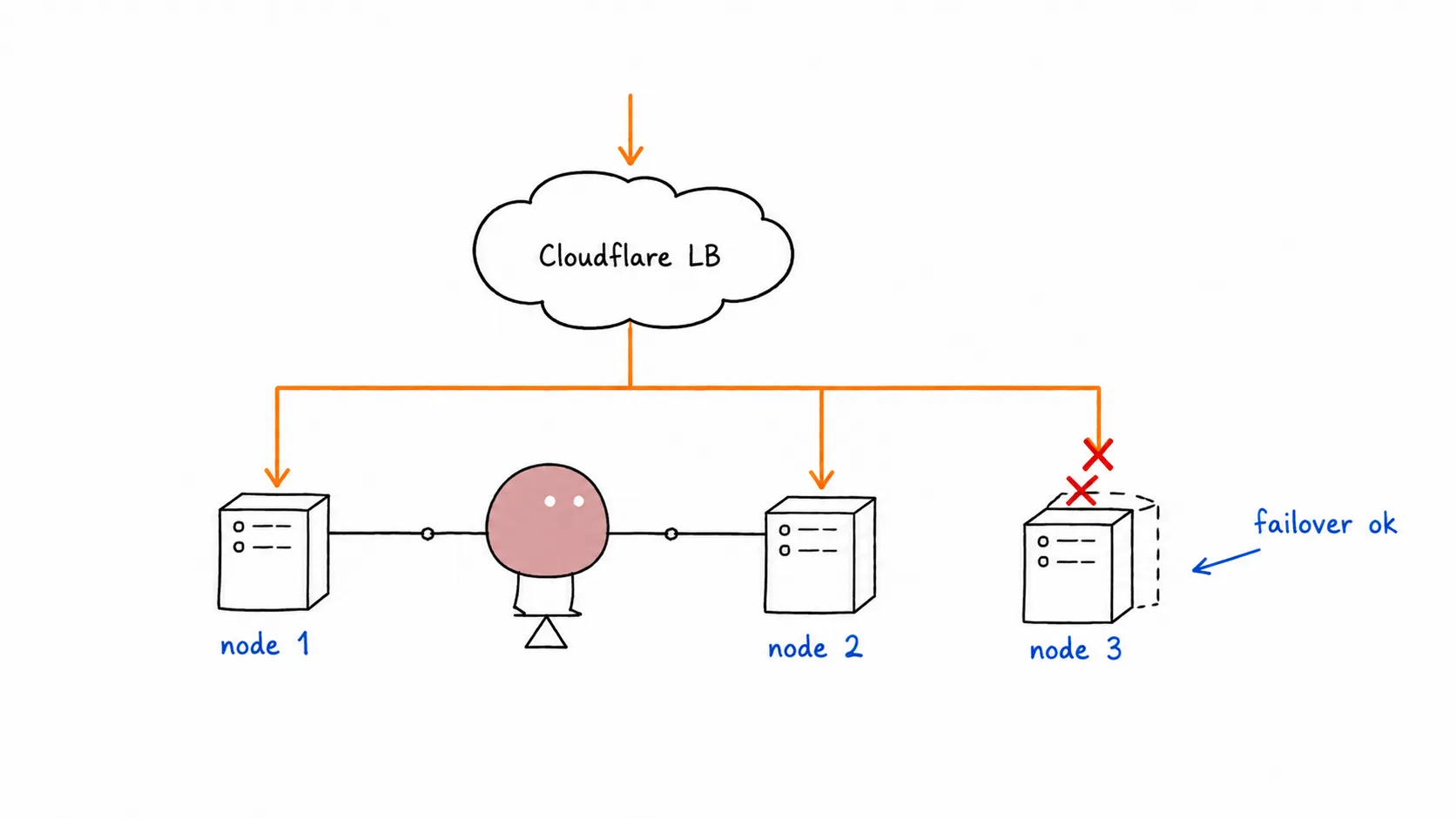
Tomochi balancing traffic from a Cloudflare cloud across multiple VPS nodes

Part 3 of the series. Part 1: Traefik · Part 2: Caddy

A single VPS is great, until it isn’t. Hardware fails. Datacenter has a bad day. Kernel panic at 3 AM. Suddenly your app is down and you’re SSH’ing from bed.

The fix: two VPS nodes. But two nodes means two copies of everything, and two databases writing independently is how you lose data. This post shows the self-hosted way: Postgres replication between nodes and MinIO for shared file storage. No managed services. No vendor lock-in. All yours.


┌─────────────┐
│ Cloudflare │
│ Orange Cloud │
│ (2x A record)│
└──────┬──────┘
┌────────────┴────────────┐
│ │
┌─────▼─────┐ ┌─────▼─────┐
│ VPS-1 │ │ VPS-2 │
│ Caddy │ │ Caddy │
│ App x3 │ │ App x3 │
│ Watchtower│ │ Watchtower│
│ │ │ │
│ Postgres │◇streaming◇│ Postgres │
│ (PRIMARY) │◇replication◇│ (REPLICA) │
│ │ │ │
│ MinIO │◇◀─sync────◇│ MinIO │
└───────────┘ └───────────┘

VPS-1 is the primary: Postgres writes, MinIO writes. VPS-2 replicates both. If VPS-1 goes down, promote VPS-2 to primary. Everything lives on your own metal.


Same as always. Two identical nodes. Same specs, same OS.

Terminal window
# On BOTH VPS-1 and VPS-2, follow Steps 1-6 from Part 1:
# - Create non-root user, add to wheel
# - Harden SSH (no root, no password)
# - Install Docker, add user to docker group
# - Firewall: ports 22, 80, 443 open
# - ALSO open port 5432 between nodes for Postgres replication
# - ALSO open port 9000 between nodes for MinIO sync

Firewall: allow Postgres + MinIO between nodes only:

Terminal window
# On BOTH nodes. Replace 10.0.0.2 with the OTHER node's private IP
sudo firewall-cmd --permanent --add-rich-rule="rule family=ipv4 source address=10.0.0.2 port port=5432 protocol=tcp accept"
sudo firewall-cmd --permanent --add-rich-rule="rule family=ipv4 source address=10.0.0.2 port port=9000 protocol=tcp accept"
sudo firewall-cmd --reload

Most VPS providers give you a private IP for inter-node communication. Use it. Don’t expose Postgres or MinIO to the public internet.


Step 2: Self-Hosted Postgres with Streaming Replication

Section titled “Step 2: Self-Hosted Postgres with Streaming Replication”

VPS-1 runs Postgres as primary (reads + writes). VPS-2 runs Postgres as hot standby (reads only, continuously synced). If VPS-1 dies, promote VPS-2.

Create a compose.yaml for Postgres:

services:
postgres:
image: postgres:17
restart: always
environment:
POSTGRES_PASSWORD: ${PG_PASSWORD}
command: |
-c wal_level=replica
-c max_wal_senders=3
-c wal_keep_size=256
volumes:
- pg-data:/var/lib/postgresql/data
- ./pg-init:/docker-entrypoint-initdb.d
ports:
- "5432:5432"
volumes:
pg-data:

Create pg-init/01-replication-user.sql:

CREATE ROLE replicator WITH LOGIN REPLICATION PASSWORD 'your-replication-password';

Deploy:

Terminal window
mkdir -p pg-init
echo "CREATE ROLE replicator WITH LOGIN REPLICATION PASSWORD 'your-replication-password';" > pg-init/01-replication-user.sql
docker compose up -d

Create a compose.yaml:

services:
postgres:
image: postgres:17
restart: always
environment:
POSTGRES_PASSWORD: ${PG_PASSWORD}
volumes:
- pg-data:/var/lib/postgresql/data
ports:
- "5432:5432"
volumes:
pg-data:

Start it once to generate the data directory, then stop it:

Terminal window
docker compose up -d
docker compose stop postgres

Now wipe the data directory and pull a base backup from the primary:

Terminal window
sudo rm -rf /var/lib/docker/volumes/guestbook_pg-data/_data/*
docker compose run --rm postgres pg_basebackup -h 10.0.0.1 -U replicator -D /var/lib/postgresql/data -P -R

The -R flag creates a standby.signal file and configures the connection string automatically.

Now update compose.yaml for VPS-2 with replication settings:

services:
postgres:
image: postgres:17
restart: always
environment:
POSTGRES_PASSWORD: ${PG_PASSWORD}
command: |
-c primary_conninfo='host=10.0.0.1 port=5432 user=replicator password=your-replication-password'
-c primary_slot_name=replica_slot
volumes:
- pg-data:/var/lib/postgresql/data
ports:
- "5432:5432"
volumes:
pg-data:

Create a replication slot on the primary:

Terminal window
# On VPS-1
docker compose exec postgres psql -U postgres -c "SELECT * FROM pg_create_physical_replication_slot('replica_slot');"

Start the replica:

Terminal window
# On VPS-2
docker compose up -d

Verify replication is working:

Terminal window
# On VPS-1 — should show one replica connected
docker compose exec postgres psql -U postgres -c "SELECT client_addr, state FROM pg_stat_replication;"

Your app needs to know: writes go to VPS-1, reads CAN go to VPS-2:

DATABASE_URL=postgresql://postgres:***@10.0.0.1:5432/mydb # writes (VPS-1)
DATABASE_REPLICA_URL=postgresql://postgres:***@10.0.0.2:5432/mydb # reads (VPS-2)

For most apps, just point everything at the primary. The replica is there for failover, not load distribution.


Step 3: Self-Hosted Object Storage with MinIO

Section titled “Step 3: Self-Hosted Object Storage with MinIO”

MinIO is an S3-compatible object store. Run it on both nodes with bucket replication.

Add to your compose.yaml:

services:
minio:
image: minio/minio:latest
restart: always
command: server /data --console-address ":9001"
environment:
MINIO_ROOT_USER: minioadmin
MINIO_ROOT_PASSWORD: ${MINIO_PASSWORD}
volumes:
- minio-data:/data
ports:
- "9000:9000"
- "9001:9001"
volumes:
minio-data:

Access MinIO Console at http://vps1-ip:9001. Create a bucket (e.g., uploads).

Then on BOTH nodes, configure replication via mc (MinIO Client):

Terminal window
# Install mc
curl https://dl.min.io/client/mc/release/linux-amd64/mc -o /usr/local/bin/mc
chmod +x /usr/local/bin/mc
# Add both MinIO instances
mc alias set vps1 http://10.0.0.1:9000 minioadmin ${MINIO_PASSWORD}
mc alias set vps2 http://10.0.0.2:9000 minioadmin ${MINIO_PASSWORD}
# Create replication rule — VPS-1 → VPS-2
mc replicate add vps1/uploads --remote-bucket vps2/uploads --priority 1
# Create replication rule — VPS-2 → VPS-1 (bidirectional)
mc replicate add vps2/uploads --remote-bucket vps1/uploads --priority 1

Now any file uploaded to VPS-1’s MinIO is automatically replicated to VPS-2, and vice versa. Your app writes to its local MinIO, reads from the same. Both nodes always have the full file set.

Your app uses the local MinIO endpoint. On each node it’s always localhost:9000:

S3_ENDPOINT=http://localhost:9000
S3_BUCKET=uploads
S3_ACCESS_KEY=minioadmin
S3_SECRET_KEY=${MINI...
No code changes needed between single-node and multi-node. MinIO replication handles sync transparently.
> **Don't need file uploads?** Skip MinIO entirely. Your app is already multi-node-ready.
---
## Step 4: Deploy the App on Both Nodes
We use **Caddy** as the reverse proxy, following the simpler setup from [Part 2](/blog/vps-production-ready-caddy/). Build the `caddy-docker-proxy` image on both nodes (or push to ghcr.io and pull):
```dockerfile
FROM caddy:2.9-builder AS builder
RUN xcaddy build --with github.com/lucaslorentz/caddy-docker-proxy/v2
FROM caddy:2.9
COPY --from=builder /usr/bin/caddy /usr/bin/caddy
Terminal window
docker build -t caddy-docker-proxy .

Now the full compose.yaml for VPS-1 (primary):

services:
caddy:
image: caddy-docker-proxy
restart: always
ports:
- "80:80"
- "443:443"
volumes:
- /var/run/docker.sock:/var/run/docker.sock:ro
- caddy-data:/data
postgres:
image: postgres:17
restart: always
environment:
POSTGRES_PASSWORD: ${PG_PASSWORD}
command: |
-c wal_level=replica
-c max_wal_senders=3
-c wal_keep_size=256
volumes:
- pg-data:/var/lib/postgresql/data
ports:
- "5432:5432"
minio:
image: minio/minio:latest
restart: always
command: server /data --console-address ":9001"
environment:
MINIO_ROOT_USER: minioadmin
MINIO_ROOT_PASSWORD: ${MINIO_PASSWORD}
volumes:
- minio-data:/data
ports:
- "9000:9000"
- "9001:9001"
guestbook:
image: ghcr.io/yourusername/guestbook:prod
restart: always
environment:
DATABASE_URL: postgresql://postgres:***@postgres:5432/mydb
S3_ENDPOINT: http://minio:9000
S3_BUCKET: uploads
S3_ACCESS_KEY: minioadmin
S3_SECRET_KEY: ${MINIO_PASSWORD}
S3_USE_SSL: "false"
labels:
caddy: yourdomain.com
caddy.reverse_proxy: "{{upstreams 8080}}"
com.centurylinklabs.watchtower.enable: "true"
deploy:
replicas: 3
depends_on:
- postgres
watchtower:
image: containrrr/watchtower
command:
- "--label-enable"
- "--interval"
- "30"
- "--rolling-restart"
volumes:
- /var/run/docker.sock:/var/run/docker.sock:ro
volumes:
caddy-data:
pg-data:
minio-data:

VPS-2 uses the same compose.yaml but with the replica Postgres config from Step 2 (different command on the postgres service). Everything else is identical.

Deploy on both:

Terminal window
# On VPS-1
cd ~/guestbook && docker compose up -d
# On VPS-2
cd ~/guestbook && docker compose up -d

Step 5: Cloudflare Orange Cloud (Free Load Balancing)

Section titled “Step 5: Cloudflare Orange Cloud (Free Load Balancing)”

Cloudflare Load Balancer costs $10/month. For two nodes, the free alternative works well enough.

  1. In Cloudflare DNS dashboard, add two A records for your domain
  2. Both point to @ (root), one to each VPS public IP
  3. Enable the orange cloud (proxy) on both records
  4. Cloudflare distributes traffic across both origins automatically
Type Name Content Proxy
A @ <VPS-1 IP> 🟧 Proxied
A @ <VPS-2 IP> 🟧 Proxied

Limitations compared to paid LB:

  • No active health checks. If VPS-1 goes hard down (timeout), Cloudflare eventually stops sending traffic there. But if the app returns 500s, Cloudflare won’t know.
  • No weighted routing. Traffic split is roughly 50/50, not configurable.
  • Failover is reactive, not proactive.

For most projects, this is enough. Your uptime monitor (Step 8) will catch the 500s and you can manually pull the dead node’s A record. If you need 99.9% uptime with automatic failover, the $10/month Cloudflare LB is the upgrade path.


Cloudflare detects VPS-1 is unreachable, routes all traffic to VPS-2. Your app on VPS-2 is still running, still serving. But Postgres on VPS-2 is a read-only replica.

To promote it:

Terminal window
# On VPS-2 — promote the replica to primary
docker compose exec postgres psql -U postgres -c "SELECT pg_promote();"

Now VPS-2’s Postgres accepts writes. Update your app’s DATABASE_URL (if it pointed to VPS-1’s IP) or restart the container if using the local postgres hostname.

Also remove VPS-1’s A record from Cloudflare DNS so traffic stops going to the dead node.

When VPS-1 comes back:

  • Rebuild it as a new replica (pg_basebackup from VPS-2)
  • Add its A record back to Cloudflare

This is a manual failover. For automatic failover you’d need Patroni + etcd, which triples the complexity. For a two-node self-hosted setup, manual promotion is pragmatic. You’ll be awake anyway because your monitoring alerted you.


Watchtower on both nodes. Push a new image, both nodes update within 30 seconds.

Terminal window
docker build -t ghcr.io/yourusername/guestbook:prod .
docker push ghcr.io/yourusername/guestbook:prod
# Wait 30s. Both VPS-1 and VPS-2 roll restart.
# Zero downtime — Cloudflare routes away from restarting node.

  • Uptime Robot (free): add http://vps1-ip/health and http://vps2-ip/health
  • Postgres replication lag:
    Terminal window
    docker compose exec postgres psql -U postgres -c "SELECT pg_wal_lsn_diff(pg_current_wal_lsn(), replay_lsn) FROM pg_stat_replication;"
  • Disk usage on both nodes:
    Terminal window
    df -h /var/lib/docker/volumes

What each component actually uses on your nodes:

ComponentvCPURAMDiskNotes
Caddy0.2128 MBNegligible. Single binary, ~20 MB at runtime
App (x3 replicas)1.5512 MBDepends on your app. Go/Rust: 50 MB, Node/Python: 200+ MB per instance
Postgres11 GBscales with dataShared buffers + WAL. 1 GB is minimum for replication
MinIO0.5512 MBscales with filesEach node stores full file set. Plan accordingly
Watchtower0.164 MBBarely a blip
OS overhead0.51 GB20 GBsystemd, Docker daemon, SSH
Buffer11.5 GBHeadroom for spikes, logs, builds

Recommendation per node: 4 vCPU / 8 GB RAM / 80 GB SSD.

For low-traffic apps, 2 vCPU / 4 GB works. For Postgres-heavy workloads, bump to 8 GB RAM and give Postgres 2-4 GB of shared_buffers.


If you followed Part 1 with Traefik and want to keep it, just swap the Caddy service for your Traefik config. The rest — Postgres replication, MinIO sync, Cloudflare DNS — stays exactly the same. The reverse proxy layer is independent of everything else.

That said, Caddy’s 3-line config is especially nice when you’re managing two identical nodes. Less YAML to keep in sync.


  • Two VPS nodes hardened, Docker installed
  • Postgres primary on VPS-1, replica on VPS-2
  • Streaming replication verified
  • MinIO running on both nodes, bucket replication active
  • Caddy built and running on both nodes
  • App deployed on both nodes with identical compose.yaml
  • Cloudflare DNS: two A records, orange cloud enabled
  • Watchtower on both nodes
  • Failover tested (promote replica, verify traffic flows)
  • Uptime monitoring on both nodes

No managed databases. No S3 bills. No load balancer subscription. Just two Linux boxes, Postgres replication, MinIO sync, and Cloudflare’s free proxy tier. Everything you need for a production multi-node setup, running on your own hardware.

VPS Production-Ready with Caddy : The Simpler Alternative

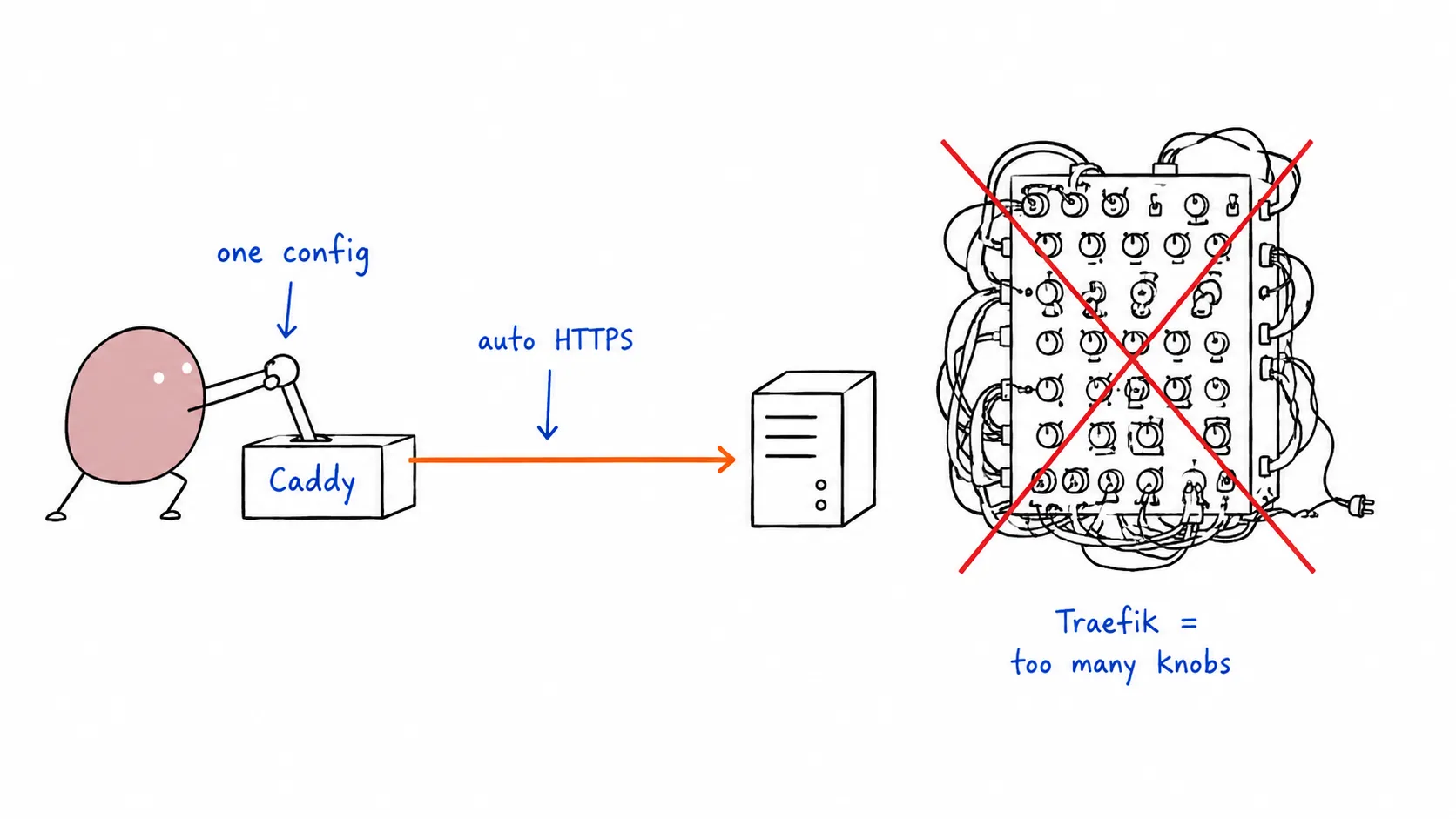
Tomochi pulling one clean Caddy lever while a tangled Traefik panel sits unused

VPS Production-Ready with Caddy : The Simpler Alternative

Section titled “VPS Production-Ready with Caddy : The Simpler Alternative”

Companion to our Traefik-based guide. Same stack, simpler reverse proxy.

In the previous post we set up a production-ready VPS with Traefik : powerful, but heavy. Traefik’s config sprawls across YAML labels, ACME resolvers, entrypoints, and middleware chains. For most projects, it’s overkill.

Caddy does the same job with a fraction of the config. One binary, HTTPS by default, and Docker labels so clean you can read them in one breath.

This post covers the exact same 12-step stack, swapping Traefik for Caddy. All commands cover both Rocky Linux 10 and Ubuntu 26.04.


Steps 1–6: Identical to the Traefik Guide

Section titled “Steps 1–6: Identical to the Traefik Guide”

Provisioning, user creation, DNS, SSH hardening, firewall, and Docker installation are exactly the same. Follow Steps 1–6 from the Traefik guide, then come back here.

Quick recap of where you should be:

  • Non-root user with sudo/wheel
  • SSH hardened (no password, no root login)
  • Firewall: ports 22, 80, 443 open
  • Docker installed, user in docker group

Step 7: Build the Caddy + Docker Proxy Image

Section titled “Step 7: Build the Caddy + Docker Proxy Image”

Caddy doesn’t natively discover Docker containers. We need the caddy-docker-proxy plugin : a lightweight module that watches Docker labels and generates routes automatically, just like Traefik.

Create a Dockerfile:

FROM caddy:2.9-builder AS builder
RUN xcaddy build \
--with github.com/lucaslorentz/caddy-docker-proxy/v2
FROM caddy:2.9
COPY --from=builder /usr/bin/caddy /usr/bin/caddy

Build it:

Terminal window
docker build -t caddy-docker-proxy .

💡 Tip: Push this image to ghcr.io/yourusername/caddy-docker-proxy so you don’t rebuild on every deploy. CI can handle it.


Create ~/guestbook/ just like before, then write the compose.yaml:

services:
caddy:
image: caddy-docker-proxy
restart: always
ports:
- "80:80"
- "443:443"
volumes:
- /var/run/docker.sock:/var/run/docker.sock:ro
- caddy-data:/data
- ./Caddyfile:/etc/caddy/Caddyfile
db:
image: postgres:17
restart: always
environment:
POSTGRES_PASSWORD_FILE: /run/secrets/postgres-password
volumes:
- postgres-data:/var/lib/postgresql/data
secrets:
- postgres-password
guestbook:
image: ghcr.io/yourusername/guestbook:prod
restart: always
environment:
DATABASE_URL: postgres://postgres:${POSTGRES_PASSWORD}@db:5432/postgres?sslmode=disable
labels:
caddy: yourdomain.com
caddy.reverse_proxy: "{{upstreams 8080}}"
deploy:
replicas: 3
depends_on:
- db
secrets:
postgres-password:
file: ./db/postgres-password.txt
volumes:
postgres-data:
caddy-data:

That’s it. Three labels replace Traefik’s 8-label configuration.

The Caddyfile is minimal : caddy-docker-proxy handles routing from Docker labels:

{
debug
}

If you need custom middleware (rate limiting, IP filtering, header manipulation), add it here. For most apps, the empty Caddyfile above is sufficient.

Deploy:

Terminal window
export POSTGRES_PASSWORD=$(cat db/postgres-password.txt)
docker compose up -d

Caddy + caddy-docker-proxy automatically discovers all containers for a service. With replicas: 3, Caddy round-robins across all three guestbook instances. No extra config.

Terminal window
docker compose up -d --scale guestbook=3

Unlike Traefik, Caddy doesn’t track container health mid-request. If a container dies between discovery ticks, the next request may hit a dead backend for a few seconds. For most projects this is fine : the health check interval is configurable.


Step 10: HTTPS : Literally Nothing to Configure

Section titled “Step 10: HTTPS : Literally Nothing to Configure”

This is where Caddy shines. HTTPS works out of the box. No ACME email, no challenge type, no certificate resolver, no storage volume for acme.json.

How? Caddy sees yourdomain.com in the Docker label, obtains a Let’s Encrypt certificate automatically, and renews it 30 days before expiry. The certificates live in the caddy-data volume.

Zero config. Not kidding.

Compare:

# No ACME config at all.
# HTTPS just works.
labels:
caddy: yourdomain.com
caddy.reverse_proxy: "{{upstreams 8080}}"

HTTP → HTTPS redirect is also automatic with Caddy. No middleware labels needed.


Step 11: Automated Deployments (Watchtower)

Section titled “Step 11: Automated Deployments (Watchtower)”

Identical to the Traefik setup:

services:
watchtower:
image: containrrr/watchtower
command:
- "--label-enable"
- "--interval"
- "30"
- "--rolling-restart"
volumes:
- /var/run/docker.sock:/var/run/docker.sock:ro
guestbook:
labels:
# ... existing Caddy labels
- "com.centurylinklabs.watchtower.enable=true"

Same as Traefik guide : Uptime Robot, Better Uptime, or self-hosted Uptime Kuma.


services:
caddy:
image: caddy-docker-proxy
restart: always
ports:
- "80:80"
- "443:443"
volumes:
- /var/run/docker.sock:/var/run/docker.sock:ro
- caddy-data:/data
db:
image: postgres:17
restart: always
environment:
POSTGRES_PASSWORD_FILE: /run/secrets/postgres-password
volumes:
- postgres-data:/var/lib/postgresql/data
secrets:
- postgres-password
guestbook:
image: ghcr.io/yourusername/guestbook:prod
restart: always
environment:
DATABASE_URL: postgres://postgres:${POSTGRES_PASSWORD}@db:5432/postgres?sslmode=disable
labels:
caddy: yourdomain.com
caddy.reverse_proxy: "{{upstreams 8080}}"
com.centurylinklabs.watchtower.enable: "true"
deploy:
replicas: 3
depends_on:
- db
watchtower:
image: containrrr/watchtower
command:
- "--label-enable"
- "--interval"
- "30"
- "--rolling-restart"
volumes:
- /var/run/docker.sock:/var/run/docker.sock:ro
secrets:
postgres-password:
file: ./db/postgres-password.txt
volumes:
postgres-data:
caddy-data:

TraefikCaddy
Config lines (HTTPS + routing)~15 lines3 labels
HTTPS setupACME resolver, email, storageZero config
Docker discoveryBuilt-inPlugin needed
Custom image requiredNoYes (build step)
DashboardBuilt-in (:8080)None
MiddlewareRich chain systemCaddyfile directives
Health-aware LBYesBasic (DNS-based)
Resource usage~40 MB RAM~20 MB RAM
Best forComplex routing, multiple services, API gatewaysSimple apps, static sites, quick deploys

Verdict: If you’re deploying a single app or a small handful of services, Caddy wins on simplicity. If you’re building a multi-service platform with complex routing rules, rate limiting, and circuit breakers : Traefik is the better tool.

Both are excellent. Pick the one that matches your complexity budget.


  • Non-root user with sudo/wheel
  • SSH hardened
  • Firewall: 22, 80, 443 open
  • Docker + user in docker group
  • Custom Caddy image built (caddy-docker-proxy)
  • App deployed with Caddy labels
  • HTTPS active (auto)
  • Multiple replicas running
  • Watchtower handling rolling updates
  • Uptime monitor configured

Caddy strips the ceremony out of reverse-proxying. Three labels, zero HTTPS config, and a single binary. For most projects shipping to a VPS, that’s exactly the right amount of complexity.

Already set up with Traefik? The migration is swapping the reverse proxy service and updating labels. Everything else : Docker, Postgres, Watchtower, firewall : stays the same.

Setting Up a Production-Ready VPS from Scratch: Rocky Linux 10 & Ubuntu 26.04

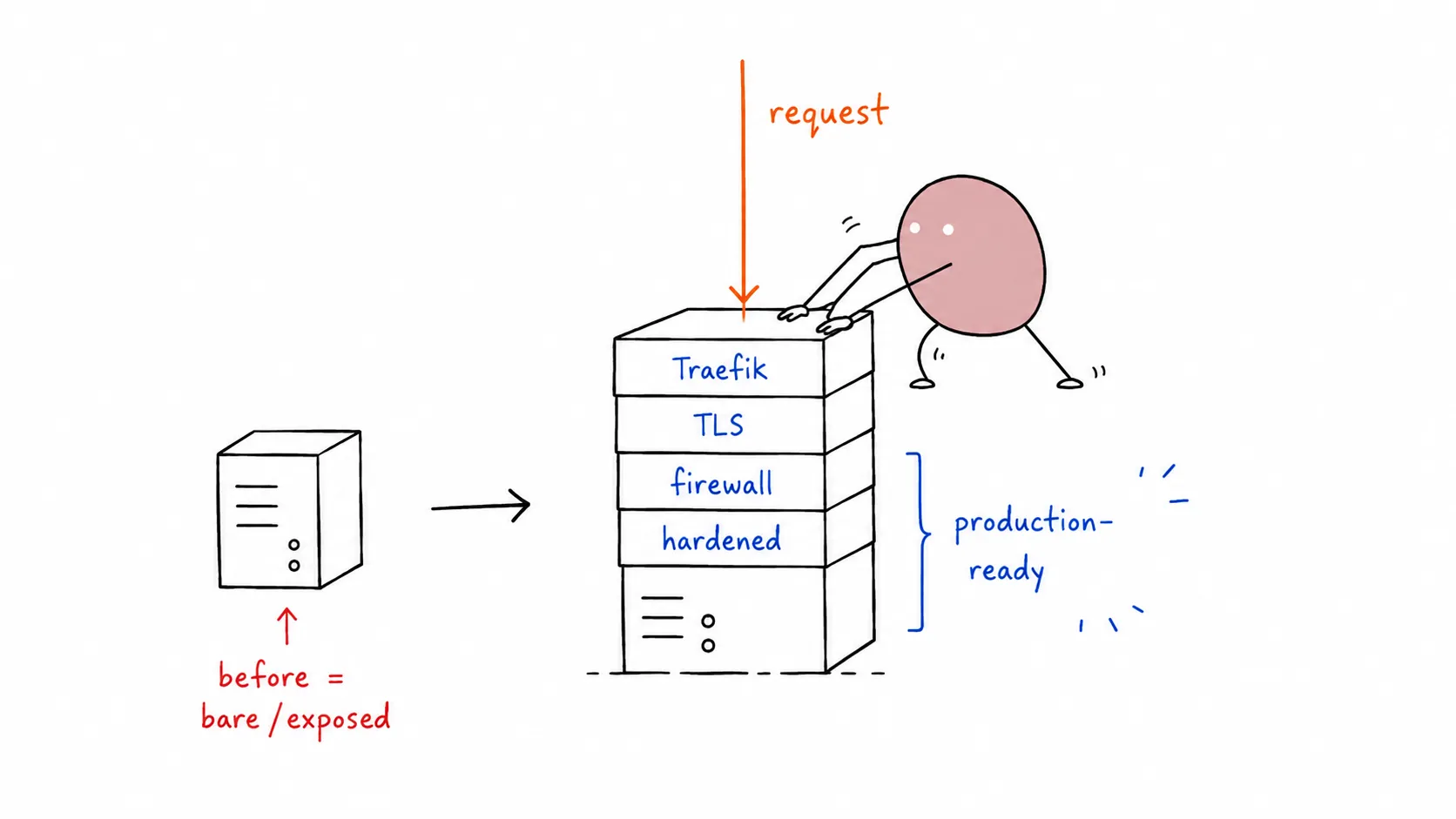
Tomochi stacking Traefik, TLS, firewall and hardening layers onto a bare VPS

Setting Up a Production-Ready VPS from Scratch: Rocky Linux 10 & Ubuntu 26.04

Section titled “Setting Up a Production-Ready VPS from Scratch: Rocky Linux 10 & Ubuntu 26.04”

Adapted from Dreams of Code, a dual-OS guide covering both RHEL-family and Debian-family setups.


Deploying to the cloud has never been easier. Platform-as-a-Service (PaaS) options like Railway, Fly.io, and Render make going live a breeze. But PaaS isn’t perfect for every use case: long-running tasks, heavy data transfer, and predictable billing often push teams toward a VPS (Virtual Private Server).

The perceived difficulty of hardening and configuring a raw VPS scares people off. But is it actually hard? We set out to prove it isn’t. Here’s a production-ready stack on both Rocky Linux 10 and Ubuntu 26.04 LTS.

  • DNS pointing to the server
  • Application deployed and running (Docker)
  • HTTPS/TLS with automatic cert provisioning & renewal (Let’s Encrypt)
  • Hardened SSH: no root login, no password auth
  • Firewall blocking unnecessary ports
  • High availability: multiple app instances
  • Load balancing via reverse proxy
  • Automated rolling deployments
  • Uptime monitoring with alerts

Constraints: No Kubernetes. No Coolify. No Terraform. Simple tooling, minimal domain expertise.


Pick a provider (Hetzner, Hostinger, DigitalOcean, Vultr). We used a 2 vCPU / 8 GB RAM instance.

💡 Hosting with a side of nasi goreng? 🇮🇩 8labs offers VirtualLabs and ElasticLabs : VPS and scalable infrastructure, straight out of Indonesia. 🤙

During setup via your provider’s panel:

  1. Select Rocky Linux 10 or Ubuntu 26.04 LTS
  2. Set a strong root password
  3. Add your SSH public key
  4. Disable any “malware scanner” or monitoring agent if you don’t need it

Once deployed, test SSH:

Terminal window
ssh root@<your-server-ip>

Working as root is a bad habit. Create a regular user with sudo/wheel privileges.

Terminal window
# Create user
useradd -m -s /bin/bash deployer
passwd deployer
# Add to wheel group (Rocky's sudo equivalent)
usermod -aG wheel deployer
# Test
su - deployer
sudo echo "sudo works"

Tip: Install tmux on the VPS. If your SSH drops, reattach with tmux attach, no lost progress.

Terminal window
sudo dnf install -y tmux # Rocky
sudo apt install -y tmux # Ubuntu

Point your domain to the VPS:

  1. Clear any existing A/AAAA/CNAME records at your registrar
  2. Add an A record for @ (root domain) pointing to your server’s IPv4
  3. Optionally add a www CNAME pointing to @

Find your server IP:

Terminal window
ip -4 addr show | grep inet
# or
curl -4 ifconfig.me

DNS propagation takes minutes to hours. Move on to security while waiting.


SSH is your front door. Lock it down.

If you don’t already have an SSH key pair, generate one on your local machine:

Terminal window
ssh-keygen -t ed25519 -C "[email protected]"
# Press Enter to accept the default path (~/.ssh/id_ed25519)
# Set a passphrase (recommended) or leave empty

Ed25519 vs RSA: Ed25519 is faster, more compact, and just as secure as RSA 4096. It is supported by OpenSSH 6.5+ (released 2014), so it works on every modern server. Only use RSA 4096 if you need to connect to legacy servers running pre-2014 OpenSSH:

Terminal window
ssh-keygen -t rsa -b 4096 -C "[email protected]"

Then copy the public key to your server:

Terminal window
ssh-copy-id deployer@<server-ip>

If you already have an SSH key, skip the generation step and jump straight to ssh-copy-id.

Test key-based login before proceeding:

Terminal window
ssh deployer@<server-ip>

Typing ssh [email protected] every time gets old. Add an entry to your local ~/.ssh/config:

Host prod-server
HostName 203.0.113.42
User deployer
IdentityFile ~/.ssh/id_ed25519
Host myapp.com
HostName myapp.com
User deployer
IdentityFile ~/.ssh/id_ed25519

Now you can connect with just:

Terminal window
ssh prod-server
ssh myapp.com

Tip: Use short, memorable Host aliases. The HostName can be either an IP address or a domain name. If you’re managing multiple servers, add an entry for each one — your fingers will thank you.

Terminal window
sudo vim /etc/ssh/sshd_config

Set or uncomment these lines:

PasswordAuthentication no
PermitRootLogin no
PubkeyAuthentication yes
# Rocky: also check /etc/ssh/sshd_config.d/*.conf for overrides
# Ubuntu: also check /etc/ssh/sshd_config.d/50-cloud-init.conf

Cloud images often ship a drop-in that re-enables password auth. Check and fix:

Terminal window
sudo grep -r "PasswordAuthentication" /etc/ssh/sshd_config.d/
Terminal window
sudo systemctl reload sshd
# This MUST fail:
ssh root@<server-ip>
# Permission denied (publickey) ← good
# This MUST work:
ssh deployer@<server-ip>

⚠️ Do not close your current SSH session until you’ve verified a new session works. Open a second terminal for testing.


Rocky uses firewalld by default (not ufw).

Terminal window
# Check status
sudo systemctl status firewalld
# If not running, install and start:
sudo dnf install -y firewalld
sudo systemctl enable --now firewalld
# Default zones
sudo firewall-cmd --get-default-zone # usually 'public'
# Allow SSH (CRITICAL: do this first)
sudo firewall-cmd --permanent --add-service=ssh
# Reload to apply
sudo firewall-cmd --reload
# Verify
sudo firewall-cmd --list-all

Docker bypass warning: Docker manipulates iptables directly, which can bypass both firewalld and ufw rules for published ports. The solution: don’t publish container ports directly. Use a reverse proxy (Step 7) and only expose ports 80/443 on the host.

Terminal window
# Remove old Docker packages if any
sudo dnf remove -y docker docker-client docker-client-latest docker-common \
docker-latest docker-latest-logrotate docker-logrotate docker-engine
# Add Docker repo
sudo dnf config-manager --add-repo https://download.docker.com/linux/rhel/docker-ce.repo
# Install Docker
sudo dnf install -y docker-ce docker-ce-cli containerd.io docker-buildx-plugin docker-compose-plugin
# Start and enable
sudo systemctl enable --now docker
# Add user to docker group
sudo usermod -aG docker deployer
# Verify
docker --version
docker compose version

If dnf config-manager isn’t available:

Terminal window
sudo dnf install -y 'dnf-command(config-manager)'

Log out and back in (or newgrp docker) for the group change to take effect.

We’ll use Docker Compose with a Go guestbook app + PostgreSQL, just like the original.

Create the project directory:

Terminal window
mkdir -p ~/guestbook/db
cd ~/guestbook

Create a secure Postgres password:

Terminal window
echo "your-strong-random-password-here" > db/postgres-password.txt
chmod 600 db/postgres-password.txt
services:
db:
image: postgres:17
restart: always
environment:
POSTGRES_PASSWORD_FILE: /run/secrets/postgres-password
volumes:
- postgres-data:/var/lib/postgresql/data
secrets:
- postgres-password
guestbook:
image: ghcr.io/yourusername/guestbook:prod
restart: always
environment:
DATABASE_URL: postgres://postgres:${POSTGRES_PASSWORD}@db:5432/postgres?sslmode=disable
ports:
- "8080:8080"
depends_on:
- db
secrets:
postgres-password:
file: ./db/postgres-password.txt
volumes:
postgres-data:

Deploy:

Terminal window
export POSTGRES_PASSWORD=$(cat db/postgres-password.txt)
docker compose up -d

Verify:

Terminal window
docker compose ps
curl http://localhost:8080

Don’t expose port 8080 on the host permanently. We’ll remove it after setting up the reverse proxy.


Traefik handles routing, TLS termination, and load balancing, all via Docker labels.

Update compose.yaml:

services:
reverse-proxy:
image: traefik:v3.3
command:
- "--providers.docker=true"
- "--providers.docker.exposedbydefault=false"
- "--entrypoints.web.address=:80"
ports:
- "80:80"
volumes:
- /var/run/docker.sock:/var/run/docker.sock:ro
db:
# ... unchanged
guestbook:
# ... unchanged except:
ports: [] # ← remove the host port mapping
labels:
- "traefik.enable=true"
- "traefik.http.routers.guestbook.rule=Host(`yourdomain.com`)"
# ... secrets and volumes unchanged

Open port 80 on the firewall:

Terminal window
sudo firewall-cmd --permanent --add-service=http
sudo firewall-cmd --reload

Redeploy:

Terminal window
docker compose up -d

Now visit http://yourdomain.com. Traefik routes traffic to the guestbook container.


Step 9: Load Balancing: Run Multiple Instances

Section titled “Step 9: Load Balancing: Run Multiple Instances”

Traefik automatically load-balances across containers with the same service name.

Terminal window
docker compose up -d --scale guestbook=3

To make it permanent, add to compose.yaml:

services:
guestbook:
# ...
deploy:
replicas: 3

Traefik round-robins by default. No extra config needed.


Step 10: HTTPS with Let’s Encrypt (Automatic TLS)

Section titled “Step 10: HTTPS with Let’s Encrypt (Automatic TLS)”

Update Traefik service in compose.yaml:

services:
reverse-proxy:
image: traefik:v3.3
command:
- "--providers.docker=true"
- "--providers.docker.exposedbydefault=false"
- "--entrypoints.web.address=:80"
- "--entrypoints.websecure.address=:443"
- "--certificatesresolvers.letsencrypt.acme.tlschallenge=true"
- "--certificatesresolvers.letsencrypt.acme.storage=/letsencrypt/acme.json"
ports:
- "80:80"
- "443:443"
volumes:
- /var/run/docker.sock:/var/run/docker.sock:ro
- letsencrypt:/letsencrypt

Update guestbook labels:

services:
guestbook:
labels:
- "traefik.enable=true"
- "traefik.http.routers.guestbook.rule=Host(`yourdomain.com`)"
- "traefik.http.routers.guestbook.entrypoints=websecure"
- "traefik.http.routers.guestbook.tls.certresolver=letsencrypt"
# HTTP → HTTPS redirect
- "traefik.http.routers.guestbook-http.rule=Host(`yourdomain.com`)"
- "traefik.http.routers.guestbook-http.entrypoints=web"
- "traefik.http.middlewares.redirect-to-https.redirectscheme.scheme=https"
- "traefik.http.routers.guestbook-http.middlewares=redirect-to-https"

Open port 443:

Terminal window
sudo firewall-cmd --permanent --add-service=https
sudo firewall-cmd --reload

Redeploy:

Terminal window
docker compose up -d

Traefik automatically obtains and renews Let’s Encrypt certificates. The acme.json file stores them. Keep it safe (600 permissions, handled by Docker volume).


Step 11: Automated Deployments with Watchtower

Section titled “Step 11: Automated Deployments with Watchtower”

Watchtower monitors Docker image registries and updates running containers when new images appear.

Add to compose.yaml:

services:
watchtower:
image: containrrr/watchtower
command:
- "--label-enable" # Only update containers with the label
- "--interval"
- "30" # Check every 30 seconds
- "--rolling-restart" # One container at a time (for multi-replica)
volumes:
- /var/run/docker.sock:/var/run/docker.sock:ro

Add the label to guestbook:

services:
guestbook:
labels:
# ... existing Traefik labels
- "com.centurylinklabs.watchtower.enable=true"

Now when you push a new image to ghcr.io/yourusername/guestbook:prod, Watchtower picks it up within 30 seconds and performs a rolling restart, zero downtime.


Free uptime monitoring options:

  • Uptime Robot: 50 monitors, 5-minute checks, email alerts. Free tier.
  • Better Uptime : 3-minute checks, heartbeat, status page. 10 monitors free.
  • Uptime Kuma: Self-hosted. Run it in Docker on the same VPS or a separate tiny instance.

Set up a monitor for https://yourdomain.com and configure alerting (email, Telegram, Discord, Slack).


The complete, production-ready stack:

services:
reverse-proxy:
image: traefik:v3.3
command:
- "--providers.docker=true"
- "--providers.docker.exposedbydefault=false"
- "--entrypoints.web.address=:80"
- "--entrypoints.websecure.address=:443"
- "--certificatesresolvers.letsencrypt.acme.tlschallenge=true"
- "--certificatesresolvers.letsencrypt.acme.storage=/letsencrypt/acme.json"
ports:
- "80:80"
- "443:443"
volumes:
- /var/run/docker.sock:/var/run/docker.sock:ro
- letsencrypt:/letsencrypt
db:
image: postgres:17
restart: always
environment:
POSTGRES_PASSWORD_FILE: /run/secrets/postgres-password
volumes:
- postgres-data:/var/lib/postgresql/data
secrets:
- postgres-password
guestbook:
image: ghcr.io/yourusername/guestbook:prod
restart: always
environment:
DATABASE_URL: postgres://postgres:${POSTGRES_PASSWORD}@db:5432/postgres?sslmode=disable
deploy:
replicas: 3
labels:
- "traefik.enable=true"
- "traefik.http.routers.guestbook.rule=Host(`yourdomain.com`)"
- "traefik.http.routers.guestbook.entrypoints=websecure"
- "traefik.http.routers.guestbook.tls.certresolver=letsencrypt"
- "traefik.http.routers.guestbook-http.rule=Host(`yourdomain.com`)"
- "traefik.http.routers.guestbook-http.entrypoints=web"
- "traefik.http.middlewares.redirect-to-https.redirectscheme.scheme=https"
- "traefik.http.routers.guestbook-http.middlewares=redirect-to-https"
- "com.centurylinklabs.watchtower.enable=true"
depends_on:
- db
watchtower:
image: containrrr/watchtower
command:
- "--label-enable"
- "--interval"
- "30"
- "--rolling-restart"
volumes:
- /var/run/docker.sock:/var/run/docker.sock:ro
secrets:
postgres-password:
file: ./db/postgres-password.txt
volumes:
postgres-data:
letsencrypt:

Deploy:

Terminal window
export POSTGRES_PASSWORD=$(cat db/postgres-password.txt)
docker compose up -d

TaskRocky Linux 10Ubuntu 26.04
Package installdnf install -y <pkg>apt install -y <pkg>
Package searchdnf search <pkg>apt search <pkg>
Add repodnf config-manager --add-repo <url>add-apt-repository or manual .list
User createuseradd -m <user>adduser <user>
Sudo groupwheelsudo
Firewallfirewalld (firewall-cmd)ufw
Service mgmtsystemctlsystemctl
SELinuxEnforcing by default (getenforce)AppArmor by default
Logsjournalctl -u <unit>journalctl -u <unit>
Croncrondcron
EPEL (extra pkgs)dnf install -y epel-releaseN/A

If SELinux blocks Docker operations (socket access, volume mounts):

Step 1: Find the blocked path. Run ausearch to see recent SELinux denials:

Terminal window
sudo ausearch -m avc -ts recent

Look for the name= field in the output. Example denial and what to look for:

type=AVC msg=audit(1718123456.789:1234): avc: denied { write } for
pid=5678 comm="dockerd" name="postgres-data" dev="sda1" ino=12345
scontext=system_u:system_r:container_t:s0
tcontext=system_u:object_r:default_t:s0 tclass=dir

The blocked path is in the name= field — here it’s postgres-data. You can also find the full path with:

Terminal window
sudo ausearch -m avc -ts recent | grep -oP 'name="?\K[^"\s]+'

Step 2: Apply the fix. Set the SELinux context for the blocked path(s):

Terminal window
# Replace /path/to/mount with the actual path from ausearch output
sudo semanage fcontext -a -t container_file_t "/path/to/mount(/.*)?"
sudo restorecon -Rv /path/to/mount

For Docker named volumes, the path is typically under /var/lib/docker/volumes/<volume-name>/. For bind mounts, use the host path from your docker-compose.yml volumes: section.

Usually Docker and SELinux coexist fine on Rocky 10 with default policies. Only intervene if you see Permission denied in container logs despite correct file permissions.


  • Non-root user created with sudo/wheel
  • SSH: PasswordAuthentication no, PermitRootLogin no
  • Firewall: only 22, 80, 443 open
  • Docker installed, user in docker group
  • App running as docker compose up -d
  • Traefik reverse proxy routing traffic
  • HTTPS active with Let’s Encrypt auto-renewal
  • Multiple app replicas running
  • Watchtower handling rolling updates
  • Uptime monitor configured with alerts

Setting up a production-ready VPS is less intimidating than it looks. Traefik + Watchtower + Docker Compose gives you 90% of what a PaaS offers : with more control, predictable billing, and no vendor lock-in. Both Rocky Linux 10 and Ubuntu 26.04 make excellent foundations; pick the ecosystem you’re most comfortable with.

OpenCode Workflow TL;DR - From One Giant Setup to Daily System

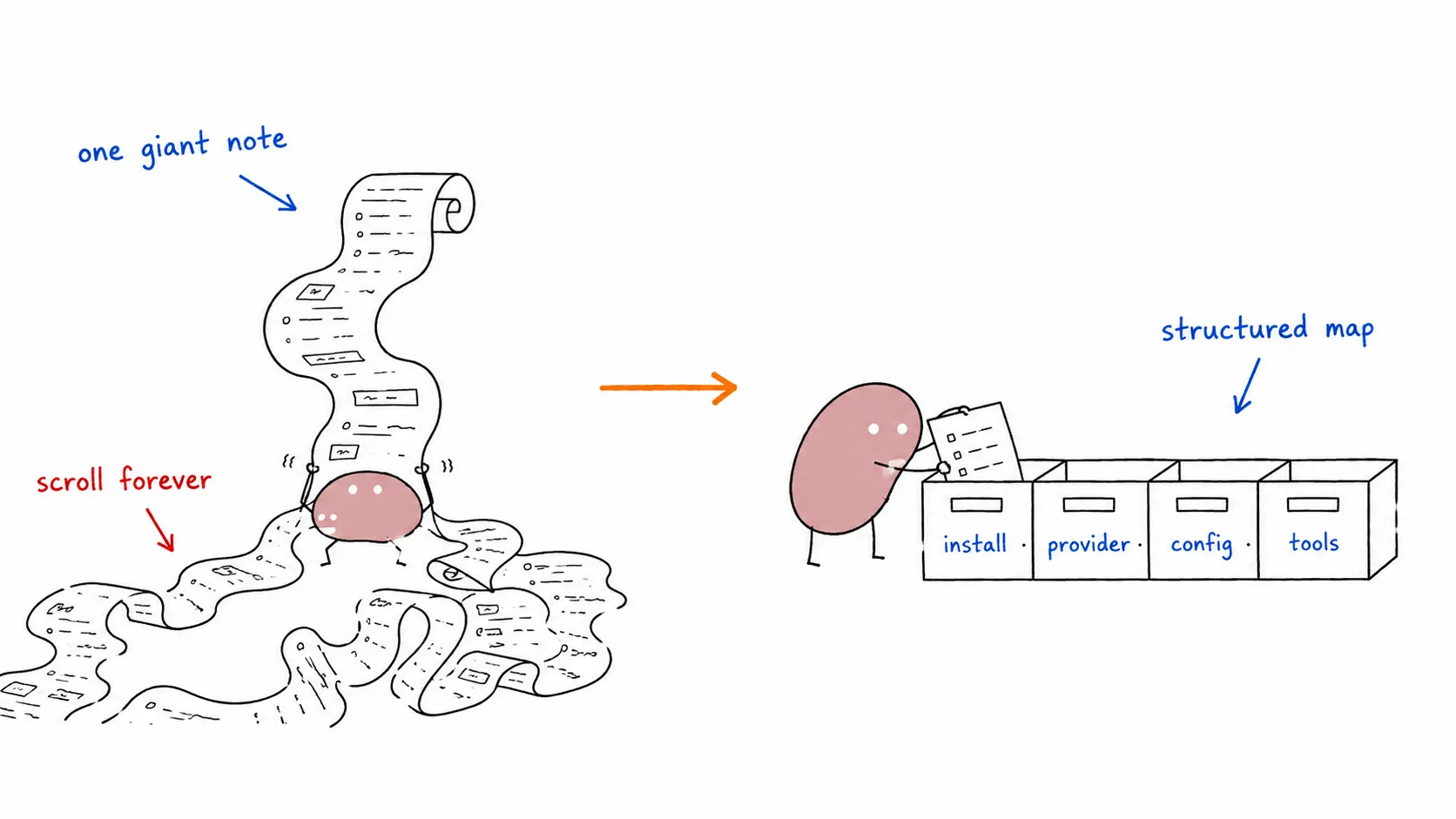
Tomochi filing one giant messy scroll into neat labeled drawers

I used to keep everything in one giant setup note, but in real life it was hard to use as a daily reference. Every time I needed one specific thing (provider setup, MCP, model choice, troubleshooting), I had to scroll through a giant wall of text.

So I turned it into a structured workflow map in the OpenCode Overview: install, provider strategy, configuration, tools, operation mode, and troubleshooting.

Instead of one massive guide, it is now split into practical pages:

The main goal was simple: make this usable when actually working, not just “complete on paper.”

The guides section has been trimmed and expanded:

  • Narrative content (provider strategy philosophy, agent personalities, tool philosophy) has been distilled — the guides now focus on concrete HOWTO steps
  • ECC — Everything Claude Code: 64 agents, 262 skills, 84 commands. Production-ready agent harness across Claude Code, OpenCode, Codex, and more
  • Caveman — Token compression that cuts ~75% output tokens with zero accuracy loss. One-line install, works across 30+ agents
  1. Pick provider path first (opencode, opencode-go, or cliproxyapi)
  2. Lock config once (providers, models, variants, MCP)
  3. Operate with roles (planner, worker, reviewer)
  4. Use focused references for model decisions and troubleshooting

That alone reduced context switching a lot.

One key clarification in the docs:

  • cliproxyapi is not the only path.
  • For this repo, cliproxyapi is mainly useful when I want multiple Codex-capable accounts behind one stable OpenAI-compatible endpoint, with retry/routing behavior centralized.

If I don’t need account pooling/load balancing, direct provider paths stay simpler.

Besides MCP tools and agent harnesses, two local CLI tools are worth installing:

Terminal window
brew install ripgrep ast-grep
  • rg for fast text search
  • sg for syntax-aware structural search

For advanced workflows, ECC adds 64 specialized subagents (planner, architect, tdd-guide, code-reviewer, security-reviewer) and Caveman cuts token costs by ~75% with a one-line install.

Another important thing I had to document clearly:

  • Project branding now points to oh-my-openagent
  • But many practical examples still use legacy names like oh-my-opencode in plugin/config keys

So the docs explain both without pretending one side doesn’t exist.

This wasn’t just a docs cleanup. It changed how I work with OpenCode day to day:

  • faster onboarding
  • clearer operational flow
  • less re-reading giant setup notes
  • better model/provider decisions during real tasks

If you’re still running from one giant setup markdown, split it into workflow pages. It’s one of those “small docs changes” that gives a big productivity return.

Ubuntu Server Hardening - A Comprehensive Security Guide

Tomochi bolting padlocks and shields onto a server box, sealing open doors

Securing your Ubuntu server is essential whether you’re running a production web server, a homelab service, or a cloud instance. This guide covers the essential steps to harden your Ubuntu Server 22.04/24.04 LTS installation, following security best practices and CIS benchmarks.

  • Ubuntu Server 22.04 LTS or 24.04 LTS (fresh installation preferred)
  • Root or sudo access
  • SSH access to the server
  • Backup of critical data (always backup before making system changes)

Start with a fully updated system to patch known vulnerabilities:

Terminal window
sudo apt update && sudo apt upgrade -y
sudo apt autoremove -y
sudo apt autoclean

Enable unattended-upgrades for automatic security patches:

Terminal window
sudo apt install -y unattended-upgrades
sudo dpkg-reconfigure -plow unattended-upgrades

Verify the configuration:

Terminal window
cat /etc/apt/apt.conf.d/50unattended-upgrades | grep -A5 "Unattended-Upgrade::Allowed-Origins"
Section titled “Change Default SSH Port (Optional but Recommended)”

Changing from port 22 reduces automated attack attempts:

Terminal window
sudo nano /etc/ssh/sshd_config

Find and modify:

Port 2222

Prevent direct root access via SSH:

Terminal window
sudo nano /etc/ssh/sshd_config

Set:

PermitRootLogin no

Disable Password Authentication (Use SSH Keys Only)

Section titled “Disable Password Authentication (Use SSH Keys Only)”

⚠️ WARNING: Ensure you have SSH key access configured before disabling passwords!

Terminal window
sudo nano /etc/ssh/sshd_config

Set:

PasswordAuthentication no
PubkeyAuthentication yes

Allow only specific users or groups:

Terminal window
sudo nano /etc/ssh/sshd_config

Add:

AllowUsers yourusername
# OR
AllowGroups ssh-users

Restart SSH service:

Terminal window
sudo systemctl restart sshd

⚠️ IMPORTANT: Keep your current SSH session open and test a new connection before closing!

Terminal window
sudo apt install -y ufw
sudo ufw default deny incoming
sudo ufw default allow outgoing

Allow your custom SSH port (if changed):

Terminal window
sudo ufw allow 2222/tcp comment 'SSH custom port'

Or if using default SSH:

Terminal window
sudo ufw allow 22/tcp comment 'SSH'

Allow common services (adjust as needed):

Terminal window
# HTTP/HTTPS (for web servers)
sudo ufw allow 80/tcp comment 'HTTP'
sudo ufw allow 443/tcp comment 'HTTPS'
# WireGuard VPN
sudo ufw allow 51820/udp comment 'WireGuard'
# DNS
sudo ufw allow 53/tcp comment 'DNS'
sudo ufw allow 53/udp comment 'DNS'
Terminal window
sudo ufw enable
sudo ufw status verbose

Fail2ban protects against brute-force attacks by banning IPs with suspicious activity.

Terminal window
sudo apt install -y fail2ban

Create a local configuration file:

Terminal window
sudo nano /etc/fail2ban/jail.local

Add the following configuration:

[DEFAULT]
# Ban IP for 1 hour after 3 failed attempts within 10 minutes
bantime = 3600
findtime = 600
maxretry = 3
backend = systemd
# Enable email notifications (optional)
# destemail = [email protected]
# sender = fail2ban@your-server
# action = %(action_mwl)s
[sshd]
enabled = true
port = 2222,22
filter = sshd
logpath = /var/log/auth.log
maxretry = 3
bantime = 3600
# Protect additional services
[nginx-http-auth]
enabled = false
[nginx-noscript]
enabled = false
[nginx-botsearch]
enabled = false
[php-url-fopen]
enabled = false
Terminal window
sudo systemctl enable --now fail2ban
sudo fail2ban-client status
sudo fail2ban-client status sshd
Terminal window
sudo adduser yourusername
sudo usermod -aG sudo yourusername

Install password quality checking:

Terminal window
sudo apt install -y libpam-pwquality
sudo nano /etc/security/pwquality.conf

Set strong password requirements:

minlen = 12
minclass = 3
maxrepeat = 2
dcredit = -1
ucredit = -1
ocredit = -1
lcredit = -1
Terminal window
# List all users
awk -F: '$3 >= 1000 && $1 != "nobody" {print $1}' /etc/passwd
# Lock unused accounts
sudo passwd -l username
Terminal window
sudo systemctl list-units --type=service --state=running
Terminal window
# Disable unnecessary services (adjust based on your needs)
sudo systemctl disable --now cups # Printing (if not needed)
sudo systemctl disable --now avahi-daemon # mDNS (if not needed)
Terminal window
# Secure SSH keys
sudo chmod 600 /etc/ssh/ssh_host_*_key
sudo chmod 644 /etc/ssh/ssh_host_*_key.pub
# Secure shadow file
sudo chmod 640 /etc/shadow
# Secure sudo configuration
sudo chmod 440 /etc/sudoers

Find files with special permissions:

Terminal window
sudo find / -perm -4000 -type f 2>/dev/null
sudo find / -perm -2000 -type f 2>/dev/null
Terminal window
sudo nano /etc/sysctl.conf

Add:

net.ipv6.conf.all.disable_ipv6 = 1
net.ipv6.conf.default.disable_ipv6 = 1
net.ipv6.conf.lo.disable_ipv6 = 1

Apply:

Terminal window
sudo sysctl -p
Terminal window
sudo nano /etc/sysctl.conf

Add security hardening:

# IP Spoofing protection
net.ipv4.conf.all.rp_filter = 1
net.ipv4.conf.default.rp_filter = 1
# Ignore ICMP broadcast requests
net.ipv4.icmp_echo_ignore_broadcasts = 1
# Disable source packet routing
net.ipv4.conf.all.accept_source_route = 0
net.ipv4.conf.default.accept_source_route = 0
# Ignore send redirects
net.ipv4.conf.all.accept_redirects = 0
net.ipv4.conf.default.accept_redirects = 0
net.ipv4.conf.all.secure_redirects = 0
net.ipv4.conf.default.secure_redirects = 0
# Disable ICMP redirects
net.ipv4.conf.all.send_redirects = 0
net.ipv4.conf.default.send_redirects = 0
# Disable log martians
net.ipv4.conf.all.log_martians = 1
# Disable IPv6 router solicitations
net.ipv6.conf.all.accept_ra = 0
net.ipv6.conf.default.accept_ra = 0

Apply:

Terminal window
sudo sysctl -p

Install and Configure AIDE (Intrusion Detection)

Section titled “Install and Configure AIDE (Intrusion Detection)”
Terminal window
sudo apt install -y aide
sudo aideinit
sudo cp /var/lib/aide/aide.db.new /var/lib/aide/aide.db
Terminal window
sudo apt install -y lynis
sudo lynis audit system
Terminal window
sudo apt install -y rkhunter chkrootbot
sudo rkhunter --update
sudo rkhunter --check
Terminal window
sudo apt install -y logwatch

Create a backup script:

Terminal window
sudo nano /usr/local/bin/system-backup.sh
#!/bin/bash
# System backup script
DATE=$(date +%Y%m%d_%H%M%S)
BACKUP_DIR="/backup/system"
mkdir -p $BACKUP_DIR
# Backup critical configuration
tar czf $BACKUP_DIR/config_backup_$DATE.tar.gz /etc /home /var/spool/cron /var/lib/dpkg
# Keep only last 7 backups
ls -t $BACKUP_DIR/*.tar.gz | tail -n +8 | xargs -r rm
echo "Backup completed: $DATE"

Make executable:

Terminal window
sudo chmod +x /usr/local/bin/system-backup.sh
Terminal window
sudo crontab -e

Add daily backup at 2 AM:

0 2 * * * /usr/local/bin/system-backup.sh >> /var/log/system-backup.log 2>&1
Terminal window
sudo apt install -y auditd audispd-plugins
sudo systemctl enable --now auditd
Terminal window
grep "Failed password" /var/log/auth.log
grep "Accepted password" /var/log/auth.log
Terminal window
sudo tail -f /var/log/ufw.log

Shared memory is a common attack vector. While it’s efficient for process communication, it can be exploited for privilege escalation or arbitrary code execution.

Add the following to /etc/fstab to mount shared memory with restrictive options:

Terminal window
echo "tmpfs /run/shm tmpfs defaults,noexec,nosuid,nodev 0 0" | sudo tee -a /etc/fstab

Explanation:

  • noexec — Prevents execution of binaries
  • nosuid — Ignores set-user-identifier bits
  • nodev — Prevents interpretation of device files

Apply changes:

Terminal window
sudo mount -o remount /run/shm
# Or reboot:
sudo reboot

Verify the mount:

Terminal window
mount | grep shm
# Should show: tmpfs on /run/shm type tmpfs (rw,nosuid,nodev,noexec,relatime)

Use this checklist to verify your hardening:

  • System fully updated with automatic security updates enabled
  • SSH root login disabled
  • SSH password authentication disabled (keys only)
  • SSH port changed from default (optional)
  • UFW firewall enabled with minimal allowed ports
  • Fail2ban installed and running
  • Non-root user created for administration
  • Password policies configured
  • Unnecessary services disabled
  • Shared memory secured (noexec,nosuid,nodev)
  • Automatic backups configured
  • Security auditing tools installed

Quick commands to audit your server’s security:

Terminal window
# Find users with UID 0 (should only be root)
awk -F: '($3 == 0) {print}' /etc/passwd
# List all user accounts
awk -F: '{print $1}' /etc/passwd
# Find users without passwords (empty password field)
awk -F: '($2 == "") {print $1}' /etc/shadow
# Check for users with sudo access
getent group sudo
# Find SUID/SGID files (potential privilege escalation)
find / -perm -4000 -type f 2>/dev/null
find / -perm -2000 -type f 2>/dev/null
Terminal window
# Check listening ports
ss -tulnp
# Check established connections
ss -tu np state established
# Review firewall status
sudo ufw status verbose
# Check for open ports from outside
# (Run from another machine)
nmap -sV your-server-ip
Terminal window
# Recent login attempts
last -a | head -20
# Failed SSH login attempts
grep "Failed password" /var/log/auth.log | tail -20
# Successful SSH logins
grep "Accepted" /var/log/auth.log | tail -20
# Fail2ban status
sudo fail2ban-client status sshd
# UFW blocked attempts
sudo grep UFW /var/log/ufw.log | tail -20
Terminal window
# Disk usage
df -h
# Check for world-writable directories
find / -type d -perm -002 ! -path "/proc/*" ! -path "/sys/*" 2>/dev/null
# List recently modified files (last 24 hours)
find /etc /var -mtime -1 -type f 2>/dev/null
# Check AIDE database (if installed)
sudo aide --check
# Run Lynis audit
sudo lynis audit system --quick

For quick deployment or automation, here’s a comprehensive hardening script. Review before running!

#!/bin/bash
# Ubuntu Server Hardening Script
# WARNING: Review before running. Test in non-production first!
set -e
# Colors for output
RED='\033[0;31m'
GREEN='\033[0;32m'
YELLOW='\033[1;33m'
NC='\033[0m' # No Color
echo -e "${YELLOW}=== Ubuntu Server Hardening Script ===${NC}"
echo -e "${RED}WARNING: Review this script before running!${NC}"
echo ""
# 1. System Updates
echo -e "${GREEN}[1/8] Updating system packages...${NC}"
apt update && apt upgrade -y
apt autoremove -y
apt autoclean
# 2. Install security tools
echo -e "${GREEN}[2/8] Installing security tools...${NC}"
apt install -y ufw fail2ban unattended-upgrades libpam-pwquality
# 3. Configure automatic updates
echo -e "${GREEN}[3/8] Configuring automatic security updates...${NC}"
dpkg-reconfigure -plow unattended-upgrades
# 4. UFW Firewall
echo -e "${GREEN}[4/8] Configuring UFW firewall...${NC}"
ufw default deny incoming
ufw default allow outgoing
ufw allow 22/tcp comment 'SSH'
ufw --force enable
# 5. SSH Hardening (preserves current session)
echo -e "${GREEN}[5/8] Hardening SSH configuration...${NC}"
cp /etc/ssh/sshd_config /etc/ssh/sshd_config.backup.$(date +%Y%m%d)
# Disable root login
sed -i 's/^#\?PermitRootLogin.*/PermitRootLogin no/' /etc/ssh/sshd_config
# Disable password authentication
sed -i 's/^#\?PasswordAuthentication.*/PasswordAuthentication no/' /etc/ssh/sshd_config
sed -i 's/^#\?PubkeyAuthentication.*/PubkeyAuthentication yes/' /etc/ssh/sshd_config
# Restart SSH (non-disruptive)
systemctl reload sshd || systemctl restart sshd
# 6. Fail2ban
echo -e "${GREEN}[6/8] Configuring Fail2ban...${NC}"
cat > /etc/fail2ban/jail.local <<EOF
[DEFAULT]
bantime = 3600
findtime = 600
maxretry = 3
[sshd]
enabled = true
port = ssh
filter = sshd
logpath = /var/log/auth.log
EOF
systemctl enable fail2ban
systemctl restart fail2ban
# 7. Secure Shared Memory
echo -e "${GREEN}[7/8] Securing shared memory...${NC}"
if ! grep -q "/run/shm" /etc/fstab; then
echo "tmpfs /run/shm tmpfs defaults,noexec,nosuid,nodev 0 0" >> /etc/fstab
mount -o remount /run/shm
fi
# 8. Kernel Security Parameters
echo -e "${GREEN}[8/8] Applying kernel security parameters...${NC}"
cat >> /etc/sysctl.conf <<EOF
# Security hardening
net.ipv4.conf.all.rp_filter = 1
net.ipv4.conf.default.rp_filter = 1
net.ipv4.icmp_echo_ignore_broadcasts = 1
net.ipv4.conf.all.accept_source_route = 0
net.ipv4.conf.default.accept_source_route = 0
net.ipv4.conf.all.accept_redirects = 0
net.ipv4.conf.default.accept_redirects = 0
net.ipv4.conf.all.send_redirects = 0
net.ipv4.conf.default.send_redirects = 0
EOF
sysctl -p
echo ""
echo -e "${GREEN}=== Hardening Complete! ===${NC}"
echo "Backup SSH config: /etc/ssh/sshd_config.backup.*"
echo ""
echo -e "${YELLOW}IMPORTANT:${NC}"
echo "1. Keep your current SSH session open"
echo "2. Test new SSH connection in another terminal"
echo "3. If locked out, restore from backup:"
echo " cp /etc/ssh/sshd_config.backup.* /etc/ssh/sshd_config"
echo " systemctl restart sshd"
echo ""
echo "Run 'lynis audit system' to verify hardening."

Save and run:

Terminal window
# Download and review
wget https://your-domain.com/harden.sh -O ubuntu-harden.sh
nano ubuntu-harden.sh # Review before running!
# Make executable and run
chmod +x ubuntu-harden.sh
sudo ./ubuntu-harden.sh

After hardening, test your configuration:

  1. Verify SSH access: Try connecting with your key (not password)
  2. Test Fail2ban: Attempt failed logins and check ban status
  3. Check firewall: Use nmap from another machine to scan open ports
  4. Run Lynis audit: Review the hardening index score
Terminal window
# From another machine, scan your server
nmap -sV -O your-server-ip

This guide provides a solid security baseline for Ubuntu servers. Remember that security is an ongoing process:

  • Monitor logs regularly for suspicious activity
  • Keep system updated with security patches
  • Review firewall rules periodically
  • Audit user accounts and remove unused ones
  • Test backups to ensure they work

⚠️ IMPORTANT: Always test changes in a non-production environment first. Keep a backup of working configurations before making changes.


Security is a journey, not a destination. Stay vigilant!