Ubuntu Server Hardening - A Comprehensive Security Guide
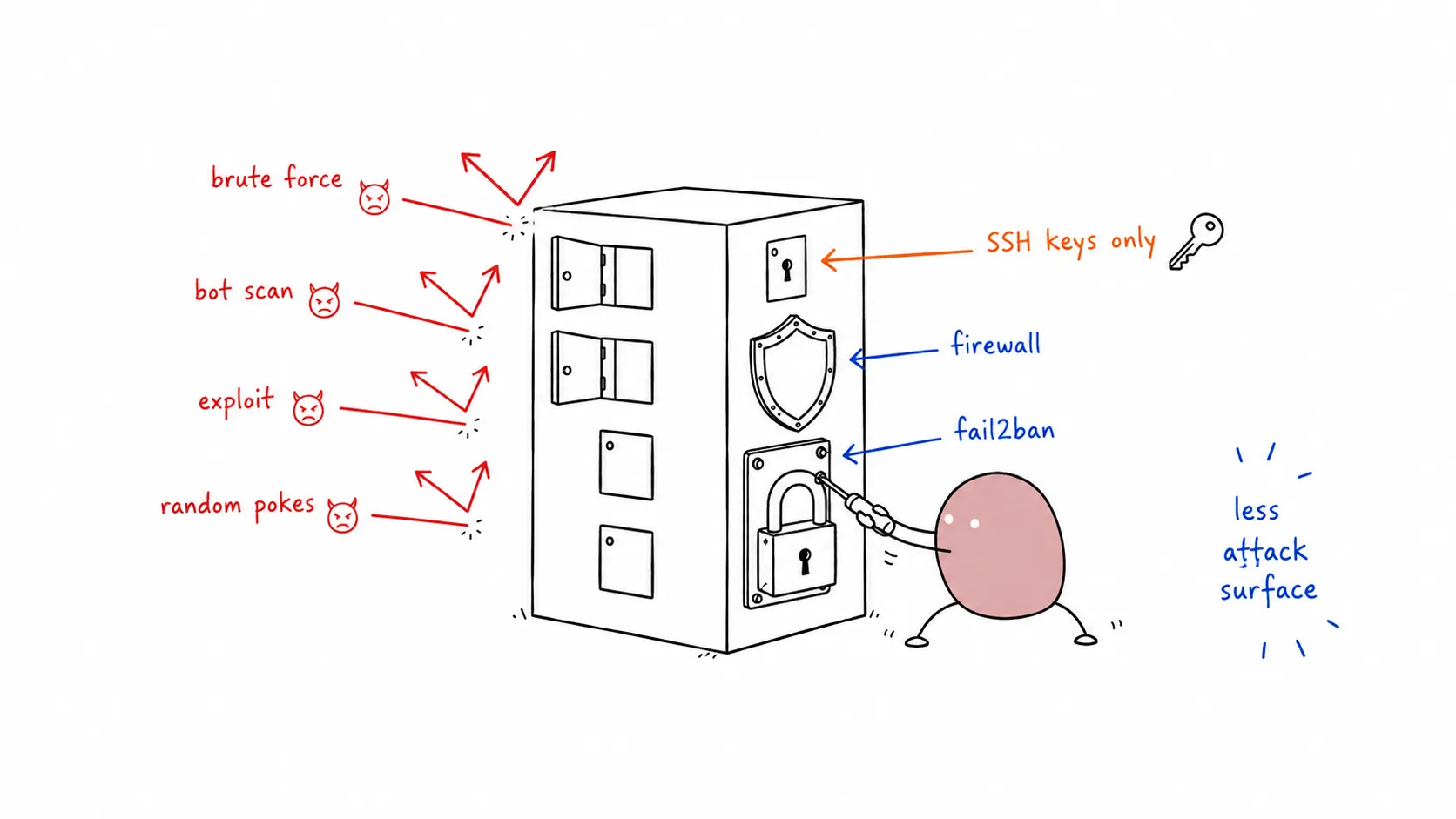

Securing your Ubuntu server is essential whether you’re running a production web server, a homelab service, or a cloud instance. This guide covers the essential steps to harden your Ubuntu Server 22.04/24.04 LTS installation, following security best practices and CIS benchmarks.
Prerequisites
Section titled “Prerequisites”- Ubuntu Server 22.04 LTS or 24.04 LTS (fresh installation preferred)
- Root or sudo access
- SSH access to the server
- Backup of critical data (always backup before making system changes)
Phase 1: Initial System Updates
Section titled “Phase 1: Initial System Updates”Update System Packages
Section titled “Update System Packages”Start with a fully updated system to patch known vulnerabilities:
sudo apt update && sudo apt upgrade -ysudo apt autoremove -ysudo apt autocleanConfigure Automatic Security Updates
Section titled “Configure Automatic Security Updates”Enable unattended-upgrades for automatic security patches:
sudo apt install -y unattended-upgradessudo dpkg-reconfigure -plow unattended-upgradesVerify the configuration:
cat /etc/apt/apt.conf.d/50unattended-upgrades | grep -A5 "Unattended-Upgrade::Allowed-Origins"Phase 2: Secure SSH Access
Section titled “Phase 2: Secure SSH Access”Change Default SSH Port (Optional but Recommended)
Section titled “Change Default SSH Port (Optional but Recommended)”Changing from port 22 reduces automated attack attempts:
sudo nano /etc/ssh/sshd_configFind and modify:
Port 2222Disable Root Login
Section titled “Disable Root Login”Prevent direct root access via SSH:
sudo nano /etc/ssh/sshd_configSet:
PermitRootLogin noDisable Password Authentication (Use SSH Keys Only)
Section titled “Disable Password Authentication (Use SSH Keys Only)”⚠️ WARNING: Ensure you have SSH key access configured before disabling passwords!
sudo nano /etc/ssh/sshd_configSet:
PasswordAuthentication noPubkeyAuthentication yesRestrict SSH to Specific Users
Section titled “Restrict SSH to Specific Users”Allow only specific users or groups:
sudo nano /etc/ssh/sshd_configAdd:
AllowUsers yourusername# ORAllowGroups ssh-usersApply SSH Changes
Section titled “Apply SSH Changes”Restart SSH service:
sudo systemctl restart sshd⚠️ IMPORTANT: Keep your current SSH session open and test a new connection before closing!
Phase 3: Firewall Configuration (UFW)
Section titled “Phase 3: Firewall Configuration (UFW)”Install and Enable UFW
Section titled “Install and Enable UFW”sudo apt install -y ufwsudo ufw default deny incomingsudo ufw default allow outgoingConfigure Firewall Rules
Section titled “Configure Firewall Rules”Allow your custom SSH port (if changed):
sudo ufw allow 2222/tcp comment 'SSH custom port'Or if using default SSH:
sudo ufw allow 22/tcp comment 'SSH'Allow common services (adjust as needed):
# HTTP/HTTPS (for web servers)sudo ufw allow 80/tcp comment 'HTTP'sudo ufw allow 443/tcp comment 'HTTPS'
# WireGuard VPNsudo ufw allow 51820/udp comment 'WireGuard'
# DNSsudo ufw allow 53/tcp comment 'DNS'sudo ufw allow 53/udp comment 'DNS'
Enable UFW
Section titled “Enable UFW”sudo ufw enablesudo ufw status verbosePhase 4: Install and Configure Fail2ban
Section titled “Phase 4: Install and Configure Fail2ban”Fail2ban protects against brute-force attacks by banning IPs with suspicious activity.
Installation
Section titled “Installation”sudo apt install -y fail2banCreate Custom Configuration
Section titled “Create Custom Configuration”Create a local configuration file:
sudo nano /etc/fail2ban/jail.localAdd the following configuration:
[DEFAULT]# Ban IP for 1 hour after 3 failed attempts within 10 minutesbantime = 3600findtime = 600maxretry = 3backend = systemd
# Enable email notifications (optional)# destemail = [email protected]# sender = fail2ban@your-server# action = %(action_mwl)s
[sshd]enabled = trueport = 2222,22filter = sshdlogpath = /var/log/auth.logmaxretry = 3bantime = 3600
# Protect additional services[nginx-http-auth]enabled = false
[nginx-noscript]enabled = false
[nginx-botsearch]enabled = false
[php-url-fopen]enabled = false
Start Fail2ban
Section titled “Start Fail2ban”sudo systemctl enable --now fail2bansudo fail2ban-client statussudo fail2ban-client status sshdPhase 5: User and Permission Management
Section titled “Phase 5: User and Permission Management”Create a Non-Root User (If Not Done)
Section titled “Create a Non-Root User (If Not Done)”sudo adduser yourusernamesudo usermod -aG sudo yourusernameConfigure Password Policies
Section titled “Configure Password Policies”Install password quality checking:
sudo apt install -y libpam-pwqualitysudo nano /etc/security/pwquality.confSet strong password requirements:
minlen = 12minclass = 3maxrepeat = 2dcredit = -1ucredit = -1ocredit = -1lcredit = -1Lock Unused Accounts
Section titled “Lock Unused Accounts”# List all usersawk -F: '$3 >= 1000 && $1 != "nobody" {print $1}' /etc/passwd
# Lock unused accountssudo passwd -l usernamePhase 6: Disable Unnecessary Services
Section titled “Phase 6: Disable Unnecessary Services”List Running Services
Section titled “List Running Services”sudo systemctl list-units --type=service --state=runningDisable Common Unused Services
Section titled “Disable Common Unused Services”# Disable unnecessary services (adjust based on your needs)sudo systemctl disable --now cups # Printing (if not needed)sudo systemctl disable --now avahi-daemon # mDNS (if not needed)Phase 7: File Permissions and Security
Section titled “Phase 7: File Permissions and Security”Secure Sensitive Files
Section titled “Secure Sensitive Files”# Secure SSH keyssudo chmod 600 /etc/ssh/ssh_host_*_keysudo chmod 644 /etc/ssh/ssh_host_*_key.pub
# Secure shadow filesudo chmod 640 /etc/shadow
# Secure sudo configurationsudo chmod 440 /etc/sudoersCheck for SUID/SGID Files
Section titled “Check for SUID/SGID Files”Find files with special permissions:
sudo find / -perm -4000 -type f 2>/dev/nullsudo find / -perm -2000 -type f 2>/dev/nullPhase 8: Network Security
Section titled “Phase 8: Network Security”Disable IPv6 (If Not Needed)
Section titled “Disable IPv6 (If Not Needed)”sudo nano /etc/sysctl.confAdd:
net.ipv6.conf.all.disable_ipv6 = 1net.ipv6.conf.default.disable_ipv6 = 1net.ipv6.conf.lo.disable_ipv6 = 1Apply:
sudo sysctl -pConfigure Kernel Parameters
Section titled “Configure Kernel Parameters”sudo nano /etc/sysctl.confAdd security hardening:
# IP Spoofing protectionnet.ipv4.conf.all.rp_filter = 1net.ipv4.conf.default.rp_filter = 1
# Ignore ICMP broadcast requestsnet.ipv4.icmp_echo_ignore_broadcasts = 1
# Disable source packet routingnet.ipv4.conf.all.accept_source_route = 0net.ipv4.conf.default.accept_source_route = 0
# Ignore send redirectsnet.ipv4.conf.all.accept_redirects = 0net.ipv4.conf.default.accept_redirects = 0net.ipv4.conf.all.secure_redirects = 0net.ipv4.conf.default.secure_redirects = 0
# Disable ICMP redirectsnet.ipv4.conf.all.send_redirects = 0net.ipv4.conf.default.send_redirects = 0
# Disable log martiansnet.ipv4.conf.all.log_martians = 1
# Disable IPv6 router solicitationsnet.ipv6.conf.all.accept_ra = 0net.ipv6.conf.default.accept_ra = 0
Apply:
sudo sysctl -pPhase 9: Install Security Tools
Section titled “Phase 9: Install Security Tools”Install and Configure AIDE (Intrusion Detection)
Section titled “Install and Configure AIDE (Intrusion Detection)”sudo apt install -y aidesudo aideinitsudo cp /var/lib/aide/aide.db.new /var/lib/aide/aide.dbInstall Lynis (Security Auditing)
Section titled “Install Lynis (Security Auditing)”sudo apt install -y lynissudo lynis audit systemInstall Rootkit Detectors
Section titled “Install Rootkit Detectors”sudo apt install -y rkhunter chkrootbotsudo rkhunter --updatesudo rkhunter --checkInstall Log Monitoring
Section titled “Install Log Monitoring”sudo apt install -y logwatchPhase 10: Backup and Recovery
Section titled “Phase 10: Backup and Recovery”Configure Automated Backups
Section titled “Configure Automated Backups”Create a backup script:
sudo nano /usr/local/bin/system-backup.sh#!/bin/bash# System backup scriptDATE=$(date +%Y%m%d_%H%M%S)BACKUP_DIR="/backup/system"mkdir -p $BACKUP_DIR
# Backup critical configurationtar czf $BACKUP_DIR/config_backup_$DATE.tar.gz /etc /home /var/spool/cron /var/lib/dpkg
# Keep only last 7 backupsls -t $BACKUP_DIR/*.tar.gz | tail -n +8 | xargs -r rm
echo "Backup completed: $DATE"Make executable:
sudo chmod +x /usr/local/bin/system-backup.shAdd to Cron
Section titled “Add to Cron”sudo crontab -eAdd daily backup at 2 AM:
0 2 * * * /usr/local/bin/system-backup.sh >> /var/log/system-backup.log 2>&1Phase 11: Ongoing Monitoring
Section titled “Phase 11: Ongoing Monitoring”Install and Configure Auditd
Section titled “Install and Configure Auditd”sudo apt install -y auditd audispd-pluginssudo systemctl enable --now auditdMonitor Failed Login Attempts
Section titled “Monitor Failed Login Attempts”grep "Failed password" /var/log/auth.loggrep "Accepted password" /var/log/auth.logReview UFW Logs
Section titled “Review UFW Logs”sudo tail -f /var/log/ufw.logPhase 12: Secure Shared Memory
Section titled “Phase 12: Secure Shared Memory”Shared memory is a common attack vector. While it’s efficient for process communication, it can be exploited for privilege escalation or arbitrary code execution.
Harden /run/shm
Section titled “Harden /run/shm”Add the following to /etc/fstab to mount shared memory with restrictive options:
echo "tmpfs /run/shm tmpfs defaults,noexec,nosuid,nodev 0 0" | sudo tee -a /etc/fstabExplanation:
noexec— Prevents execution of binariesnosuid— Ignores set-user-identifier bitsnodev— Prevents interpretation of device files
Apply changes:
sudo mount -o remount /run/shm# Or reboot:sudo rebootVerify the mount:
mount | grep shm# Should show: tmpfs on /run/shm type tmpfs (rw,nosuid,nodev,noexec,relatime)Quick Security Checklist
Section titled “Quick Security Checklist”Use this checklist to verify your hardening:
- System fully updated with automatic security updates enabled
- SSH root login disabled
- SSH password authentication disabled (keys only)
- SSH port changed from default (optional)
- UFW firewall enabled with minimal allowed ports
- Fail2ban installed and running
- Non-root user created for administration
- Password policies configured
- Unnecessary services disabled
- Shared memory secured (
noexec,nosuid,nodev) - Automatic backups configured
- Security auditing tools installed
Security Audit Cheatsheet
Section titled “Security Audit Cheatsheet”Quick commands to audit your server’s security:
User & Permission Auditing
Section titled “User & Permission Auditing”# Find users with UID 0 (should only be root)awk -F: '($3 == 0) {print}' /etc/passwd
# List all user accountsawk -F: '{print $1}' /etc/passwd
# Find users without passwords (empty password field)awk -F: '($2 == "") {print $1}' /etc/shadow
# Check for users with sudo accessgetent group sudo
# Find SUID/SGID files (potential privilege escalation)find / -perm -4000 -type f 2>/dev/nullfind / -perm -2000 -type f 2>/dev/nullNetwork & Connection Auditing
Section titled “Network & Connection Auditing”# Check listening portsss -tulnp
# Check established connectionsss -tu np state established
# Review firewall statussudo ufw status verbose
# Check for open ports from outside# (Run from another machine)nmap -sV your-server-ipLog & Activity Auditing
Section titled “Log & Activity Auditing”# Recent login attemptslast -a | head -20
# Failed SSH login attemptsgrep "Failed password" /var/log/auth.log | tail -20
# Successful SSH loginsgrep "Accepted" /var/log/auth.log | tail -20
# Fail2ban statussudo fail2ban-client status sshd
# UFW blocked attemptssudo grep UFW /var/log/ufw.log | tail -20System & File Auditing
Section titled “System & File Auditing”# Disk usagedf -h
# Check for world-writable directoriesfind / -type d -perm -002 ! -path "/proc/*" ! -path "/sys/*" 2>/dev/null
# List recently modified files (last 24 hours)find /etc /var -mtime -1 -type f 2>/dev/null
# Check AIDE database (if installed)sudo aide --check
# Run Lynis auditsudo lynis audit system --quickOne-Click Hardening Script
Section titled “One-Click Hardening Script”For quick deployment or automation, here’s a comprehensive hardening script. Review before running!
#!/bin/bash# Ubuntu Server Hardening Script# WARNING: Review before running. Test in non-production first!
set -e
# Colors for outputRED='\033[0;31m'GREEN='\033[0;32m'YELLOW='\033[1;33m'NC='\033[0m' # No Color
echo -e "${YELLOW}=== Ubuntu Server Hardening Script ===${NC}"echo -e "${RED}WARNING: Review this script before running!${NC}"echo ""
# 1. System Updatesecho -e "${GREEN}[1/8] Updating system packages...${NC}"apt update && apt upgrade -yapt autoremove -yapt autoclean
# 2. Install security toolsecho -e "${GREEN}[2/8] Installing security tools...${NC}"apt install -y ufw fail2ban unattended-upgrades libpam-pwquality
# 3. Configure automatic updatesecho -e "${GREEN}[3/8] Configuring automatic security updates...${NC}"dpkg-reconfigure -plow unattended-upgrades
# 4. UFW Firewallecho -e "${GREEN}[4/8] Configuring UFW firewall...${NC}"ufw default deny incomingufw default allow outgoingufw allow 22/tcp comment 'SSH'ufw --force enable
# 5. SSH Hardening (preserves current session)echo -e "${GREEN}[5/8] Hardening SSH configuration...${NC}"cp /etc/ssh/sshd_config /etc/ssh/sshd_config.backup.$(date +%Y%m%d)
# Disable root loginsed -i 's/^#\?PermitRootLogin.*/PermitRootLogin no/' /etc/ssh/sshd_config
# Disable password authenticationsed -i 's/^#\?PasswordAuthentication.*/PasswordAuthentication no/' /etc/ssh/sshd_configsed -i 's/^#\?PubkeyAuthentication.*/PubkeyAuthentication yes/' /etc/ssh/sshd_config
# Restart SSH (non-disruptive)systemctl reload sshd || systemctl restart sshd
# 6. Fail2banecho -e "${GREEN}[6/8] Configuring Fail2ban...${NC}"cat > /etc/fail2ban/jail.local <<EOF[DEFAULT]bantime = 3600findtime = 600maxretry = 3
[sshd]enabled = trueport = sshfilter = sshdlogpath = /var/log/auth.logEOF
systemctl enable fail2bansystemctl restart fail2ban
# 7. Secure Shared Memoryecho -e "${GREEN}[7/8] Securing shared memory...${NC}"if ! grep -q "/run/shm" /etc/fstab; then    echo "tmpfs /run/shm tmpfs defaults,noexec,nosuid,nodev 0 0" >> /etc/fstab    mount -o remount /run/shmfi
# 8. Kernel Security Parametersecho -e "${GREEN}[8/8] Applying kernel security parameters...${NC}"cat >> /etc/sysctl.conf <<EOF
# Security hardeningnet.ipv4.conf.all.rp_filter = 1net.ipv4.conf.default.rp_filter = 1net.ipv4.icmp_echo_ignore_broadcasts = 1net.ipv4.conf.all.accept_source_route = 0net.ipv4.conf.default.accept_source_route = 0net.ipv4.conf.all.accept_redirects = 0net.ipv4.conf.default.accept_redirects = 0net.ipv4.conf.all.send_redirects = 0net.ipv4.conf.default.send_redirects = 0EOF
sysctl -p
echo ""echo -e "${GREEN}=== Hardening Complete! ===${NC}"echo "Backup SSH config: /etc/ssh/sshd_config.backup.*"echo ""echo -e "${YELLOW}IMPORTANT:${NC}"echo "1. Keep your current SSH session open"echo "2. Test new SSH connection in another terminal"echo "3. If locked out, restore from backup:"echo "   cp /etc/ssh/sshd_config.backup.* /etc/ssh/sshd_config"echo "   systemctl restart sshd"echo ""echo "Run 'lynis audit system' to verify hardening."
Save and run:
# Download and reviewwget https://your-domain.com/harden.sh -O ubuntu-harden.shnano ubuntu-harden.sh  # Review before running!
# Make executable and runchmod +x ubuntu-harden.shsudo ./ubuntu-harden.sh
Testing Your Security
Section titled “Testing Your Security”After hardening, test your configuration:
- Verify SSH access: Try connecting with your key (not password)
- Test Fail2ban: Attempt failed logins and check ban status
- Check firewall: Use
nmapfrom another machine to scan open ports - Run Lynis audit: Review the hardening index score
# From another machine, scan your servernmap -sV -O your-server-ipConclusion
Section titled “Conclusion”This guide provides a solid security baseline for Ubuntu servers. Remember that security is an ongoing process:
- Monitor logs regularly for suspicious activity
- Keep system updated with security patches
- Review firewall rules periodically
- Audit user accounts and remove unused ones
- Test backups to ensure they work
⚠️ IMPORTANT: Always test changes in a non-production environment first. Keep a backup of working configurations before making changes.
Additional Resources
Section titled “Additional Resources”References
Section titled “References”Security is a journey, not a destination. Stay vigilant!